
One of the most confusing things about buying an external monitor for a Mac is that 4K does not always feel as sharp, clean, or comfortable as people expect. On paper, a 4K monitor sounds like it should be more than enough. It has far more pixels than a basic 1080p display, it is widely available, and it is often much cheaper than a 5K display. But once you connect a 27-inch 4K monitor to a Mac, you may notice something strange: the image can either look too large, too small, or slightly less crisp than you expected.
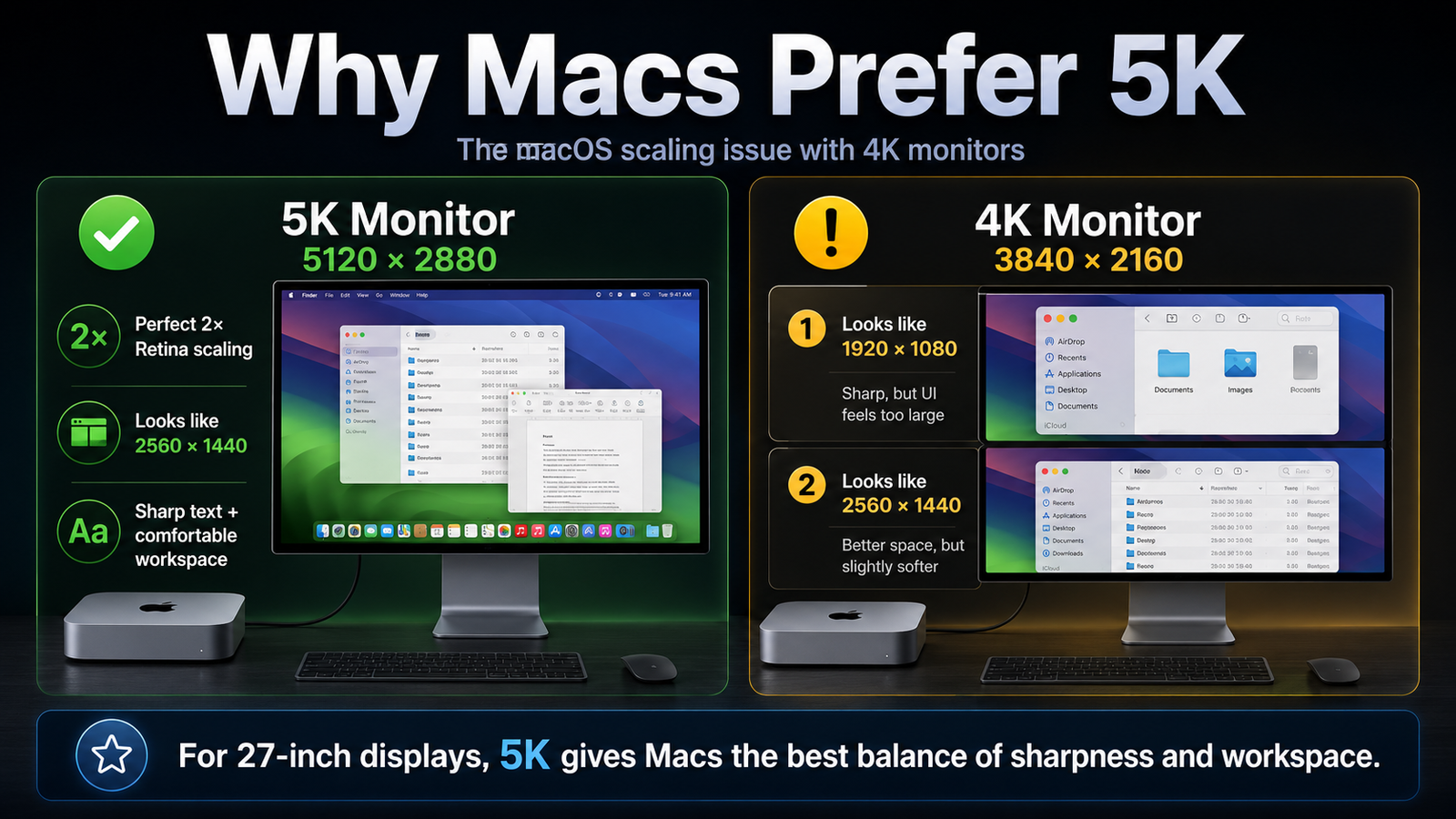
The reason comes down to the way macOS handles display scaling. Apple’s modern interface is designed around Retina scaling, where the system renders the interface at a higher resolution and then displays it in a way that keeps text, icons, and windows at a comfortable size. On Apple’s own 27-inch 5K displays, this works almost perfectly because the math lines up cleanly. A 5K display has a native resolution of 5120 × 2880, which can scale cleanly to a “looks like 2560 × 1440” workspace. That gives users the familiar amount of desktop space many people like on a 27-inch monitor, while using four physical pixels for every logical point on screen. Apple’s 27-inch 5K iMac and Studio Display both use this 5120 × 2880 resolution approach.
That is why 5K feels so natural on a Mac. At 27 inches, “looks like 2560 × 1440” is a very comfortable workspace for productivity. Text is not too small, windows have plenty of room, and everything still looks very sharp because macOS is working with a clean 2× Retina scale. This is the experience Apple has trained Mac users to expect from built-in Retina displays. The problem is that most third-party monitors are not 5K. They are usually 4K, especially in the 27-inch category.
A 27-inch 4K monitor has a native resolution of 3840 × 2160. If macOS uses a clean 2× Retina scale on that display, the interface becomes “looks like 1920 × 1080.” That setting is sharp, but many users find it too large for a 27-inch screen. You get crisp text, but you lose a lot of usable workspace. It can feel like you bought a large high-resolution monitor only to use it like a 1080p display.
The other option is to choose a scaled setting such as “looks like 2560 × 1440.” This gives you the amount of workspace that feels right on a 27-inch monitor, but it is not a clean 2× match for a 4K panel. To create that view, macOS has to render the interface at a higher internal resolution and then scale it down to the monitor’s actual 3840 × 2160 pixels. Apple’s own display settings allow users to select different resolutions for connected displays, but the key issue is that not every scaled option maps evenly to the physical pixels of the screen.
This is where the “Macs don’t scale well with 4K monitors” complaint comes from. It does not mean 4K monitors are unusable with Macs. In fact, many people use them every day and are happy with them. The issue is that 4K at 27 inches forces a compromise. You can choose sharper scaling with less workspace, or more comfortable workspace with scaling that may look slightly softer than a true 5K Retina display. For people who are sensitive to text sharpness, this difference can be noticeable, especially if they spend hours reading, writing, editing video, working in spreadsheets, or looking at fine UI elements.
There can also be a small performance consideration. When macOS uses a scaled mode like “looks like 2560 × 1440” on a 4K monitor, the Mac may render more pixels internally before scaling the image down. On modern Apple Silicon Macs, this usually is not a major problem for normal work. However, it is still less ideal than a native 5K display running at a clean 2× scale. For most users, the bigger issue is not raw performance — it is visual quality and comfort.
This is why Apple’s monitor strategy makes sense, even if the prices are frustrating. A 5K 27-inch monitor is not just about having “more pixels” than 4K. It is about having the right number of pixels for macOS. The 5K resolution allows the Mac to deliver a 1440p-style workspace while keeping everything Retina sharp. That combination is exactly what many Mac users want: lots of space, clean text, and a natural interface size.
That does not mean everyone needs to buy a 5K display. A 24-inch 4K monitor can work well because the smaller size makes the “looks like 1920 × 1080” mode feel more reasonable. A 32-inch 4K monitor can also be acceptable for people who sit farther back or prefer larger text and UI elements. But for the classic 27-inch desktop monitor size, 5K is the sweet spot for macOS. It gives you the workspace of 1440p with the sharpness of Retina.
The frustrating part is that 5K monitors are still much less common and much more expensive than 4K monitors. That leaves many Mac users choosing between price and perfection. A 4K monitor can absolutely be a good value, especially for casual users, office work, video viewing, or budget setups. But if you want the cleanest Mac experience, especially for text-heavy work, photo editing, design, video editing, or long daily use, 5K is still the better match.
In simple terms, Macs do not necessarily “need” 5K to function well, but macOS looks and feels its best when the display resolution lines up with Apple’s Retina scaling system. A 4K display gives you plenty of pixels, but not always the right pixel math. A 5K display gives the Mac exactly what it wants: a clean 2× Retina scale, a comfortable 2560 × 1440 workspace, and the sharp, polished look people expect from Apple hardware.
Bottom Line
If you are buying a monitor for a Mac, the best choice depends on size and budget. For a 27-inch monitor, 5K is ideal because it scales perfectly with macOS. A 27-inch 4K display can still work, but you may have to choose between sharpness and usable workspace. That is the real Mac scaling issue: 4K is not bad, but 5K is the resolution that makes macOS feel truly at home.