
Clicking a phishing link can be scary, but it does not automatically mean your accounts are hacked, your computer is infected, or your money is gone. What matters most is what happened after you clicked. Did you simply open a suspicious webpage? Did you enter your password? Did you download a file? Did you give away a credit card number, Social Security number, banking information, or a two-factor authentication code?
The faster you respond, the better your chances of preventing real damage. Phishing attacks are designed to create panic, urgency, and confusion. The best thing you can do is slow down, stop interacting with the message, and take the right steps in the right order.
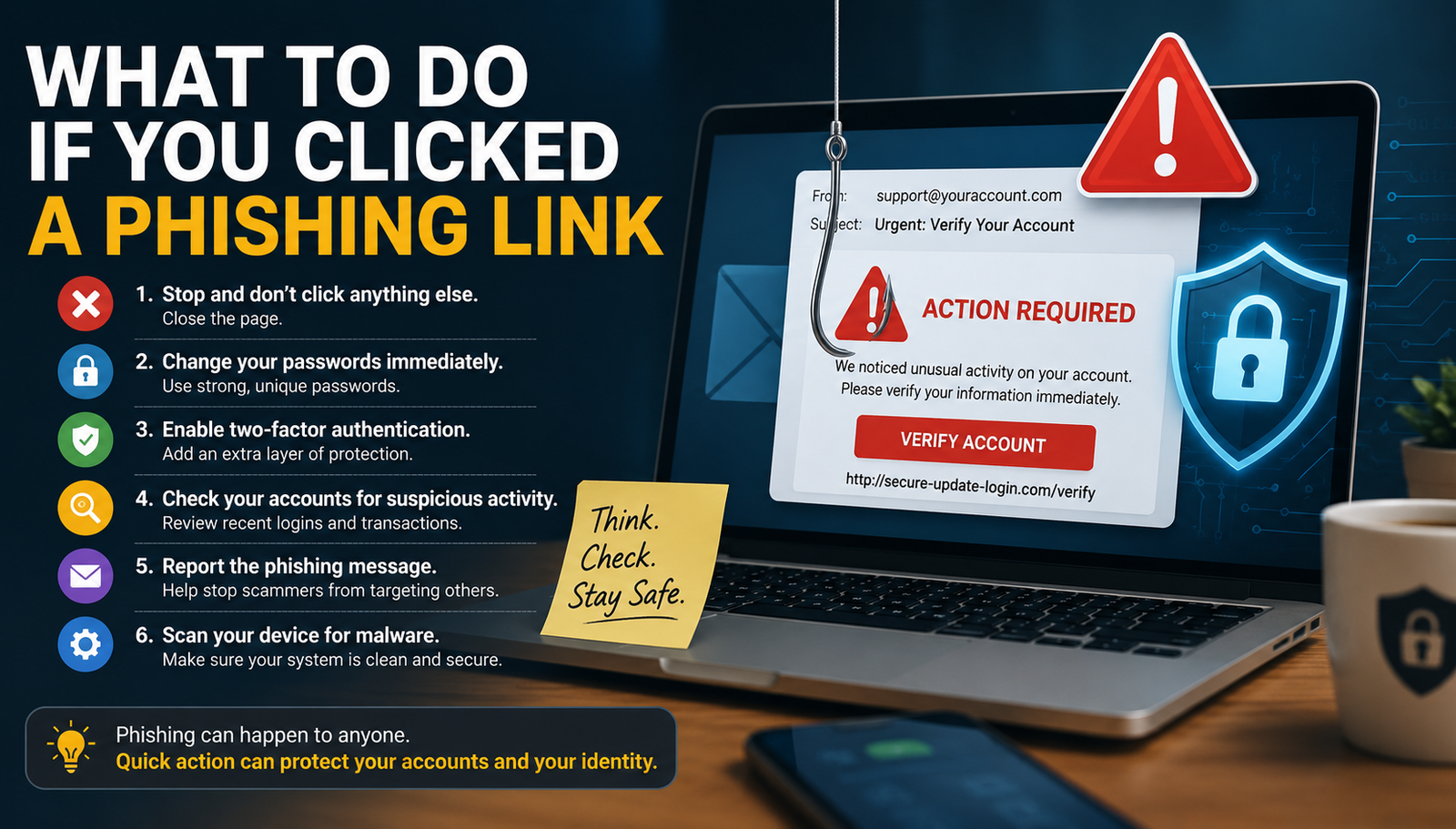
1. Stop Clicking and Close the Page
The first thing to do is stop interacting with the page. Do not click any buttons, do not call any phone number shown on the page, do not download anything, and do not type in any more information.
Some phishing pages are simple fake login pages. Others use scare tactics, such as fake virus warnings, fake account lockouts, fake bank alerts, or fake tech support messages. If the page says your computer is infected, your account will be deleted, or you must call a number immediately, that is a major warning sign.
Close the browser tab or quit the browser entirely. If the page will not close, force quit the browser. On a Mac, press Command + Option + Esc, select the browser, and choose Force Quit. On Windows, press Ctrl + Shift + Esc, open Task Manager, select the browser, and end the task.
Do not use any phone number, chat window, or support link from the suspicious page. If you need to contact a bank, Apple, Microsoft, Google, Amazon, PayPal, or another company, go directly to the official website or app yourself.
2. Disconnect From the Internet If You Downloaded Something
If you only clicked a link and immediately closed the page, disconnecting from the internet may not be necessary. But if you downloaded a file, opened an attachment, installed something, allowed notifications, gave remote access, or saw strange behavior on your device, disconnect from the internet right away.
On Wi-Fi, turn Wi-Fi off. If you are using Ethernet, unplug the cable. This can help limit communication between your device and a malicious server while you figure out what happened.
This is especially important if the phishing page convinced you to install a program, browser extension, remote support tool, fake antivirus app, or “security update.” Some scams try to get victims to install remote access software so the scammer can control the computer. If that happened, disconnect immediately and do not reconnect until you have removed the software and checked the device.
3. Figure Out What Information You Entered
The next step is to identify what you gave away. Your response depends on the type of information involved.
If you only clicked the link and did not enter anything, your risk is usually lower. You should still close the page, report the message, and watch for unusual account activity.
If you entered a password, that account is at risk. You need to change the password immediately from the real website or app.
If you entered a credit card number, contact your credit card company and monitor for unauthorized charges. You may need a replacement card.
If you entered banking information, contact your bank immediately.
If you entered a Social Security number, tax information, driver’s license number, or other identity information, you may need to place a fraud alert or credit freeze and monitor your credit reports.
If you entered a two-factor authentication code, the situation is more urgent. A scammer may have used that code in real time to access your account. Change the password, sign out of all sessions, review account activity, and update your recovery information immediately.
4. Change the Password for the Affected Account
If you entered your password on a suspicious site, change that password immediately. Do this by going directly to the real website or app, not by clicking any link in the suspicious email or text.
For example, if the phishing message looked like it came from Apple, go directly to your Apple Account settings. If it looked like Gmail, go directly to your Google Account. If it looked like your bank, use the bank’s official app or type the bank’s address into the browser yourself.
When changing the password, create a new one that is unique and not used anywhere else. Do not simply change one number or add an exclamation point to the old password. Use a strong password or passphrase, or let a trusted password manager create one for you.
If you reused that same password on other websites, change those passwords too. Password reuse is one of the biggest reasons one phishing attack can turn into multiple hacked accounts.
5. Turn On Two-Factor Authentication
After changing your password, enable two-factor authentication if it is not already on. Two-factor authentication adds another step when signing in, such as a code, push notification, security key, or passkey.
This does not make you invincible, but it gives your account an extra layer of protection. Even if a scammer gets your password, they may still be blocked from signing in.
For important accounts, use the strongest option available. Passkeys, security keys, or app-based authentication are usually stronger than text-message codes. SMS codes are better than no two-factor authentication at all, but they can be more vulnerable to SIM-swap attacks or real-time phishing scams.
Make sure your recovery email address and phone number are also up to date. If a scammer changes your recovery information, it can become much harder to get your account back.
6. Sign Out of Other Sessions
Many major services let you see where your account is currently signed in. If you clicked a phishing link and entered login information, sign out of all other sessions or devices if the service gives you that option.
This is important because a scammer may already be logged in even after you change your password. Signing out of other sessions can kick unauthorized users out of the account.
Look for settings such as:
- Your devices
- Recent activity
- Where you’re signed in
- Security activity
- Manage devices
- Sign out of all sessions
Check for unfamiliar locations, devices, browsers, or times. Keep in mind that location data is not always perfect because of VPNs, mobile networks, and internet routing, but obvious unknown devices should be removed.
7. Scan Your Device for Malware
If you downloaded a file, opened an attachment, installed software, or your device started behaving strangely, run a malware scan.
On Windows, you can use Windows Security, which is built into Windows. Make sure it is updated, then run a full scan. You can also use a trusted third-party security tool if you already use one.
On a Mac, Apple includes built-in protections, but you should still be careful if you installed unknown software or gave something permission to run. Remove any suspicious apps, browser extensions, profiles, login items, or remote access tools. If you are not sure what was installed, consider using a reputable Mac security scanner or contacting Apple Support.
On iPhone and iPad, traditional malware is less common when the device is up to date and not jailbroken, but phishing can still steal passwords, payment information, and verification codes. Remove suspicious calendar subscriptions, configuration profiles, VPNs, or apps you do not recognize. Also update iOS or iPadOS.
On Android, uninstall suspicious apps, check app permissions, update the phone, and use Google Play Protect or a trusted mobile security app.
8. Check Your Email Rules, Forwarding, and Recovery Settings
If your email account was targeted, do more than change the password. Email accounts are especially valuable to attackers because they can be used to reset passwords for many other services.
Check your email settings for anything unusual, including:
- Automatic forwarding to an unknown address
- Filters that hide security alerts
- Deleted recovery emails
- New recovery phone numbers
- New recovery email addresses
- Unknown connected apps
- Suspicious app passwords
- Unknown devices signed into the account
Scammers sometimes create email rules that automatically delete or hide messages from banks, stores, payment apps, or security services. That allows them to keep using your accounts without you noticing the warning emails.
Also check your sent folder. If your account sent phishing messages to friends, customers, coworkers, or family members, warn them not to click anything suspicious from you.
9. Contact Your Bank or Credit Card Company If Payment Info Was Involved
If you entered a credit card number, debit card number, bank login, routing number, or other financial information, contact the financial institution immediately.
For a credit card, you may need to request a new card number and dispute unauthorized charges. Credit cards usually offer better fraud protection than debit cards, but you still need to act quickly.
For a debit card or bank account, the risk can be more serious because money may leave your account directly. Contact your bank’s fraud department as soon as possible, explain what happened, and follow their instructions.
Watch your statements closely for small test charges, unfamiliar subscriptions, transfers, or purchases. Scammers sometimes start with a small transaction before attempting a larger one.
10. Watch for Identity Theft If You Shared Personal Information
If the phishing site collected sensitive personal information, such as your Social Security number, date of birth, address, tax information, driver’s license number, or health insurance information, you should treat it as a possible identity theft risk.
Consider placing a fraud alert or credit freeze with the major credit bureaus. A credit freeze can make it harder for someone to open a new credit account in your name. You can temporarily lift the freeze later when you need to apply for credit.
Also watch for signs of identity theft, including:
- New accounts you did not open
- Credit inquiries you do not recognize
- Bills for services you did not use
- Debt collection notices
- Tax filing problems
- Medical bills that are not yours
- Unexpected account verification messages
If you believe your identity was stolen, report it through the proper government and financial channels and keep records of everything you do.
11. Report the Phishing Message
Reporting phishing helps email providers, phone carriers, companies, and government agencies identify and block scams.
If the phishing attempt came by email, use your email provider’s Report phishing or Report spam option. If it looked like it came from a specific company, many companies have a dedicated phishing reporting address or fraud page.
If it looked like it came from Apple, Microsoft, Google, Amazon, PayPal, your bank, or another major service, report it directly through that company’s official reporting process. Do not forward sensitive information unless the company specifically asks for it.
You can also report scams to the FTC if you are in the United States. If the attack affected a workplace, school, government agency, or business account, report it to your IT department immediately. Businesses may also need to report serious cyber incidents through official channels.
After reporting the message, delete it. Do not reply to the sender, and do not click unsubscribe links in suspicious messages.
12. Warn Others If the Scam Spread Through Your Account
If your email, social media, or messaging account sent out scam links to other people, warn them quickly. A short message is enough:
“My account may have sent a suspicious message. Please do not click any links or download anything from that message. I am securing the account now.”
This matters because people are more likely to click a link when it appears to come from someone they know. A quick warning can prevent the scam from spreading to your friends, family, coworkers, or customers.
If you run a business, YouTube channel, website, or online store, this step is even more important because your audience may trust messages that appear to come from you.
13. Update Your Device and Browser
After dealing with the immediate risk, update your device, browser, and important apps. Security updates often patch vulnerabilities that attackers can exploit.
Update:
- macOS, Windows, iOS, iPadOS, or Android
- Safari, Chrome, Edge, Firefox, or your main browser
- Password manager
- Email app
- Banking apps
- Security software
- Any app involved in the incident
Also remove old browser extensions you no longer use. Extensions can be a security risk if they are abandoned, sold to another developer, or granted too much access.
14. Learn the Warning Signs for Next Time
Most phishing attacks rely on urgency, fear, curiosity, or trust. The message may claim your account will be closed, your payment failed, your package is delayed, your iCloud storage is full, your bank account is locked, or your computer is infected.
Common warning signs include:
- A message you were not expecting
- Pressure to act immediately
- A link that does not match the real company website
- Requests for passwords, verification codes, or payment details
- Strange grammar or wording
- Generic greetings
- Suspicious attachments
- Threats that your account will be closed
- Fake invoices or order confirmations
- A phone number you are told to call immediately
The safest habit is simple: do not log in from links in unexpected messages. Go directly to the company’s official app or website instead.
What If You Only Clicked but Did Not Enter Anything?
If you clicked a phishing link but did not enter information, download anything, install anything, or grant permissions, the risk is usually much lower. Close the page, report the message, delete it, and watch for unusual activity.
However, if your browser downloaded a file automatically, your device acted strangely, or the page asked for notification permissions and you allowed them, take additional steps. Remove the download, revoke site notification permissions, clear suspicious browser permissions, and scan the device.
What If You Entered Your Password?
If you entered your password, assume that password is compromised. Change it immediately from the real website or app. Then enable two-factor authentication, sign out of all other sessions, check recovery information, and review recent account activity.
If that same password was used on other accounts, change it everywhere. Attackers often try stolen email and password combinations on many popular websites.
What If You Entered a Two-Factor Code?
If you entered a two-factor authentication code into a fake page, act quickly. Some phishing attacks use the code immediately to sign in as you. Change your password, revoke active sessions, remove unknown devices, check recovery information, and review recent activity.
If this was a work, school, or business account, contact IT immediately. Real-time phishing attacks can move fast, especially when cloud accounts, email, or financial systems are involved.
Final Thoughts
Clicking a phishing link is not the end of the world, but ignoring it can make things worse. The key is to respond based on what happened. If you only clicked, close the page and report the message. If you entered a password, change it immediately. If you gave away financial information, contact your bank or card issuer. If you shared sensitive identity information, monitor for identity theft and consider a credit freeze.
Most importantly, do not let panic make you click more links, call fake support numbers, or give away more information. Go directly to the official website or app, secure your accounts, and take the situation one step at a time.