
Most people don’t think seriously about backups until something goes wrong.
A hard drive fails. A laptop is stolen. Ransomware encrypts everything. A cloud account gets locked. A power surge takes out a computer and the external drive sitting next to it.
That is when many people discover an uncomfortable truth: having a backup is not the same thing as having a good backup strategy.
One of the best and easiest-to-understand approaches is the 3-2-1 backup rule. It has been used for years by businesses, IT professionals, photographers, video editors, and anyone else who cannot afford to lose important data.
The concept is simple:
Keep 3 copies of your data, stored on 2 different types of storage, with 1 copy kept off-site.
It sounds almost too simple, but when implemented correctly, it protects you against nearly every common way data gets lost.
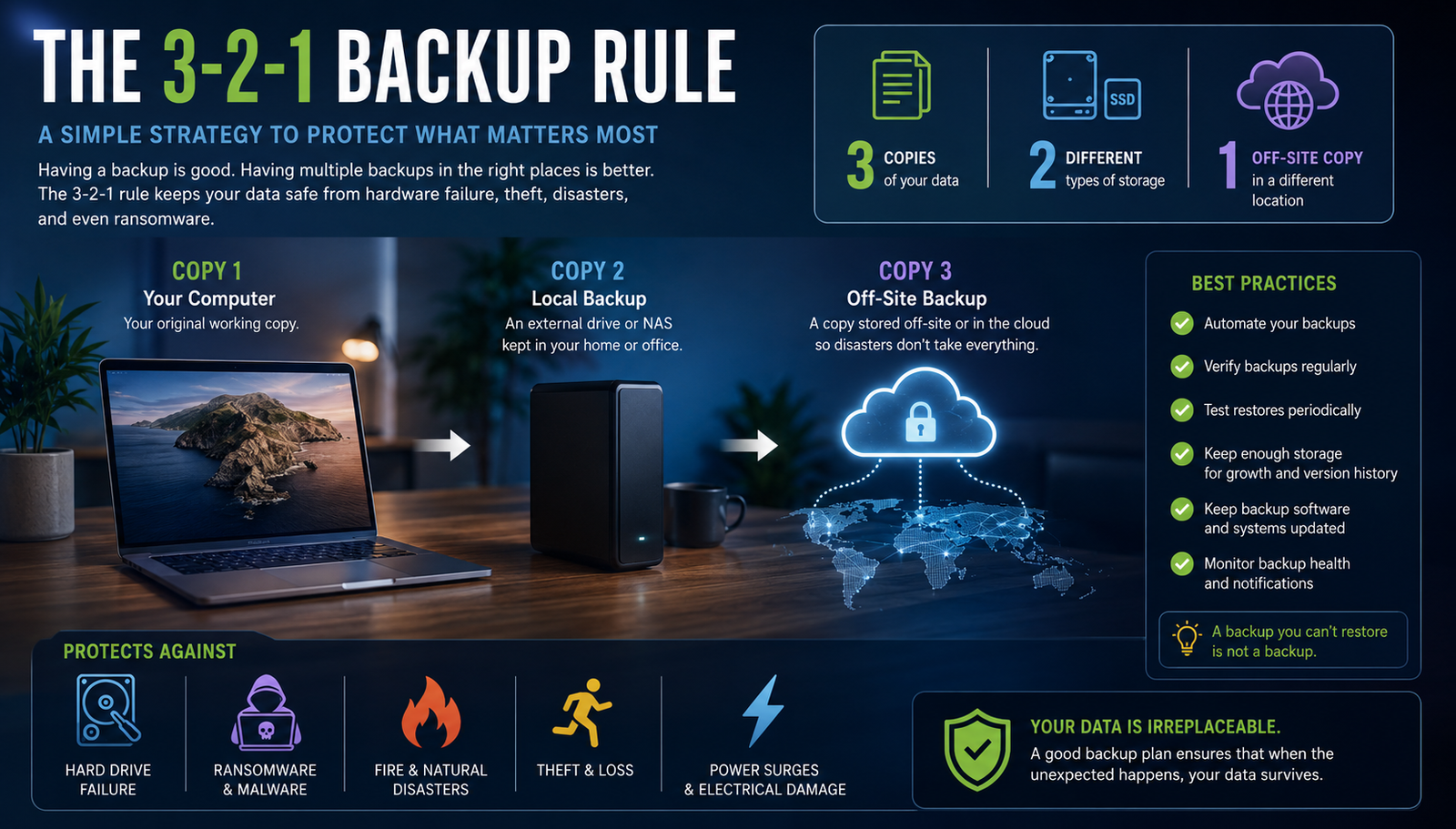
What Does 3-2-1 Backup Actually Mean?
The traditional 3-2-1 backup strategy looks like this:
3 Copies of Your Data
You should have three total copies of anything important:
- Your original working copy
- A local backup
- A second backup stored somewhere else
Your original file counts as one of those three copies.
For example, imagine you have 500GB of family photos stored on your Mac.
Your three copies might be:
- The photos stored on your Mac
- A Time Machine backup on an external drive
- A cloud or off-site backup containing those same photos
If the Mac dies, you still have two copies.
If the Mac and external drive are damaged together, you still have the off-site copy.
That redundancy is the entire point.
Why One Backup Isn’t Enough
A common mistake is thinking that plugging in an external hard drive means your data is completely protected.
It isn’t.
Suppose your Mac contains all your files and you use an external SSD for Time Machine.
That’s certainly better than having no backup at all, but both devices may be sitting on the same desk.
Now imagine:
- Your computer is stolen
- A fire damages your home
- A flood reaches your office
- A major electrical surge damages connected equipment
- Ransomware affects connected drives
You could potentially lose the computer and its backup at the same time.
That is why the third copy matters so much.
The “2” Means Two Different Storage Types
The next part of the strategy says your copies should exist on at least two different forms of storage.
Traditionally, that might have meant something like:
- An internal SSD
- An external hard drive
- Tape storage
For most home users today, it could mean something much simpler:
- Internal Mac or PC SSD
- External HDD or SSD
- Cloud backup
The goal is diversification.
Different storage technologies fail in different ways.
An SSD can experience controller failure. A mechanical hard drive can develop bad sectors or suffer mechanical damage. A cloud service could experience account or service problems.
By spreading your data across different storage systems, you avoid relying on one technology.
The “1” Means One Copy Off-Site
This is arguably the most important part of the entire strategy.
At least one backup should exist somewhere physically separate from your main computer.
That could mean:
- A cloud backup service
- A NAS located at another property
- An external drive stored at another location
- A backup server at an office
- A drive stored in a secure deposit box
For most people, cloud backup is the easiest solution.
Your computer could disappear tomorrow, yet your off-site backup would still exist.
A Simple 3-2-1 Backup Setup for a Mac
Let’s look at a practical example.
Suppose you own a MacBook with a 1TB SSD.
Your important files live on the MacBook.
Copy 1: Your Mac
This is your working copy.
Documents, photos, videos, projects, and everything else live on the internal SSD.
Copy 2: Time Machine
Connect an external hard drive or SSD and configure Apple’s Time Machine.
Time Machine automatically creates backups and maintains previous versions of files.
If you accidentally delete something today, you may be able to recover yesterday’s version.
If your Mac completely fails, Time Machine can also help restore your system and files.
Copy 3: Cloud Backup
Your third copy should exist outside your home.
A true cloud backup service can continuously upload your important data over the internet.
Now your setup looks like this:
Mac internal SSD → Time Machine external drive → Cloud backup
That is a very strong backup system without being overly complicated.
Should You Use an SSD or HDD for Your Local Backup?
Either can work.
For backup purposes, mechanical hard drives still make a lot of sense.
Hard Drives
Traditional spinning hard drives are inexpensive and available in large capacities.
They are excellent for:
- Time Machine
- Large photo libraries
- Video archives
- Long-term backups
- Multi-terabyte storage
You may be able to purchase several terabytes of HDD storage for considerably less than the equivalent SSD.
Speed isn’t usually critical for routine backups.
SSDs
External SSDs are much faster and more resistant to physical movement because they contain no moving mechanical parts.
They are great for:
- Portable backups
- Fast restores
- Frequently accessed files
- Smaller backup libraries
Their biggest disadvantage is price per terabyte.
For a desktop backup that spends its life plugged into a computer, a large external HDD can still be one of the best values.
A NAS Can Make 3-2-1 Even Better
More advanced users may want to add a NAS, or Network Attached Storage system.
A NAS is essentially a small storage server connected to your network.
Multiple computers can back up to it automatically.
For example:
MacBook → NAS → Cloud backup
A NAS can also contain multiple drives configured for redundancy.
But there is an important distinction here.
RAID Is Not a Backup
This is something worth emphasizing.
RAID should never be treated as a replacement for backup.
Suppose your NAS contains four drives configured so one drive can fail without losing data.
That’s excellent protection against a drive failure.
But what happens if:
- You accidentally delete a folder?
- Malware encrypts the NAS?
- The NAS itself fails?
- The device is stolen?
- A fire destroys it?
RAID helps maintain availability when a disk fails.
A backup protects your data from being lost.
Those are different things.
Isn’t iCloud Already a Backup?
This is another area where people get confused.
Cloud synchronization services and cloud backup services are not necessarily the same thing.
Services such as iCloud Drive, Dropbox, OneDrive, and Google Drive are primarily designed to synchronize files between devices.
That is extremely useful, but synchronization can also synchronize mistakes.
If you delete a file, that deletion may eventually propagate to your other devices.
Many services offer file recovery and version history, which helps enormously, but I still would not treat synchronization alone as my complete backup strategy.
Think of cloud synchronization as an additional layer rather than your only layer.
What Data Should You Back Up?
Ideally, everything you cannot easily replace.
That usually includes:
- Family photos and videos
- Tax records
- Business documents
- Financial records
- Creative projects
- YouTube projects
- Music libraries
- Important emails or exported archives
- Password vault backups
- Scanned documents
- Home videos
- Personal documents
Operating systems and applications can usually be downloaded again.
Your daughter’s first birthday photos cannot.
That is why personal data should receive the highest priority.
Don’t Forget External Drives
Another common mistake happens when people move large files away from their computer onto an external drive.
For example, imagine your MacBook has a 512GB SSD.
You buy a 4TB external drive and move your entire photo and video library onto it.
You might think:
“My files are safe because they’re on an external drive.”
They’re not backed up.
You simply moved the original copy.
If that external drive dies, the files disappear with it.
The moment an external drive becomes the only location containing a file, it becomes primary storage and needs its own backup.
Backup Drives Eventually Fail Too
No storage device lasts forever.
That includes:
- SSDs
- Hard drives
- USB flash drives
- NAS drives
- Memory cards
You should never assume that because a backup drive worked today, it will work five years from now.
Periodically check your backups.
Make sure files can actually be restored.
A backup that cannot be restored isn’t much of a backup.
The Step Most People Forget: Test Your Backup
Creating backups is only half the job.
Every few months, try restoring something.
Pick a random document or photo and recover it from your backup.
Make sure:
- The backup is running
- Recent files are included
- The drive is readable
- Your cloud backup is current
- You know how to restore files
The worst possible time to learn how your backup system works is after your computer has already failed.
Consider Disconnecting One Backup
There is another layer of protection worth considering, especially against ransomware.
A permanently connected backup drive can potentially be affected if malicious software gains access to attached storage.
One solution is maintaining a backup that isn’t always connected.
For example:
Mac → Time Machine drive → Cloud backup → Periodic offline drive
Once a month, you could connect another external drive, update the backup, and then disconnect it.
That gives you an additional copy that is normally inaccessible.
Technically, you’ve moved beyond 3-2-1 at that point—which is perfectly fine.
More well-managed redundancy is usually a good thing.
What About the Updated 3-2-1-1-0 Rule?
Some IT professionals now recommend an expanded approach called 3-2-1-1-0.
The idea is:
3 copies of your data
2 different types of storage
1 copy off-site
1 copy offline or immutable
0 backup errors
That last number refers to routinely verifying that your backups are actually working.
For a business or anyone handling extremely valuable data, 3-2-1-1-0 can be an excellent goal.
But for most home users, a properly implemented 3-2-1 system is already a massive improvement over what they currently have.
A Practical Backup Plan for Most People
You don’t need an enterprise data center in your basement.
A straightforward setup could look like this:
Computer
Keep your everyday files on your Mac or PC.
External Backup
Use a sufficiently large external HDD or SSD with automatic backup software such as Time Machine.
Off-Site Backup
Use a reputable cloud backup service to maintain another copy outside your home.
That’s it.
Your data now exists in three places.
If the computer fails, use the external backup.
If the external backup fails, use the cloud.
If your house suffers a major disaster, your cloud backup remains somewhere else.
That’s exactly what 3-2-1 is designed to accomplish.
How Much Backup Storage Should You Buy?
Don’t buy a backup drive that is exactly the same size as the amount of data you currently have.
Give yourself room to grow.
If your computer contains 1TB of storage, I would generally consider a 2TB or larger backup drive.
If you have a large media collection, consider even more.
Time Machine and other backup systems can also keep older versions of files, which consumes additional storage.
More capacity allows you to maintain a deeper backup history.
The Biggest Backup Mistakes
Most serious data-loss situations aren’t caused by complicated technical failures.
They’re usually caused by simple mistakes.
Some of the biggest include:
- Having no backup whatsoever
- Keeping only one backup
- Leaving every copy in the same location
- Assuming RAID is a backup
- Assuming cloud synchronization is a complete backup
- Moving files to an external drive and calling it a backup
- Never testing backups
- Ignoring backup failure notifications
- Using old drives indefinitely without checking them
The good news is that nearly all of these problems are easy to avoid.
The Best Backup System Is the One That Runs Automatically
Perhaps the most important rule isn’t actually part of 3-2-1.
Automate as much as possible.
A backup system that requires you to remember to manually copy folders every Friday probably won’t happen every Friday.
Automatic backups are dramatically better.
Time Machine can run automatically.
Cloud backup can run automatically.
NAS backups can run automatically.
Once everything is configured, your backup system should require very little attention beyond periodically checking that everything is healthy.
Final Thoughts: Your Data Is Probably Worth More Than Your Computer
A computer can be replaced.
An SSD can be replaced.
A camera can be replaced.
Your files may not be.
Years of family photographs, business records, creative projects, and personal documents can disappear in seconds if the only device containing them fails.
That is why the 3-2-1 backup strategy remains one of the simplest and smartest approaches to protecting your digital life.
Remember:
3 copies of your data.
2 different storage methods.
1 copy somewhere else.
Add automatic backups and occasional restore testing, and you have a data protection strategy that is dramatically safer than simply hoping your storage never fails.
Because when it comes to backups, the question isn’t whether a storage device can fail.
Eventually, something will.
The goal is to make sure that when it does, it doesn’t matter.