
Buying storage used to be simple. You bought a hard drive, chose how many gigabytes you needed, and moved on.
Today, things are much more complicated.
You will see terms like M.2, NVMe, SATA, PCIe, SSD, HDD, U.2, external SSD, USB4, and Thunderbolt, sometimes all on the same product page. To make matters even more confusing, some of these terms describe the physical shape of a drive, while others describe how the drive communicates with your computer.
The good news is that once you understand a few basic concepts, modern storage becomes much easier to navigate.
In this guide, we’ll break down the major types of computer storage, explain how they differ, and help you decide which one makes the most sense for gaming, everyday computing, video editing, backups, servers, and long-term data storage.
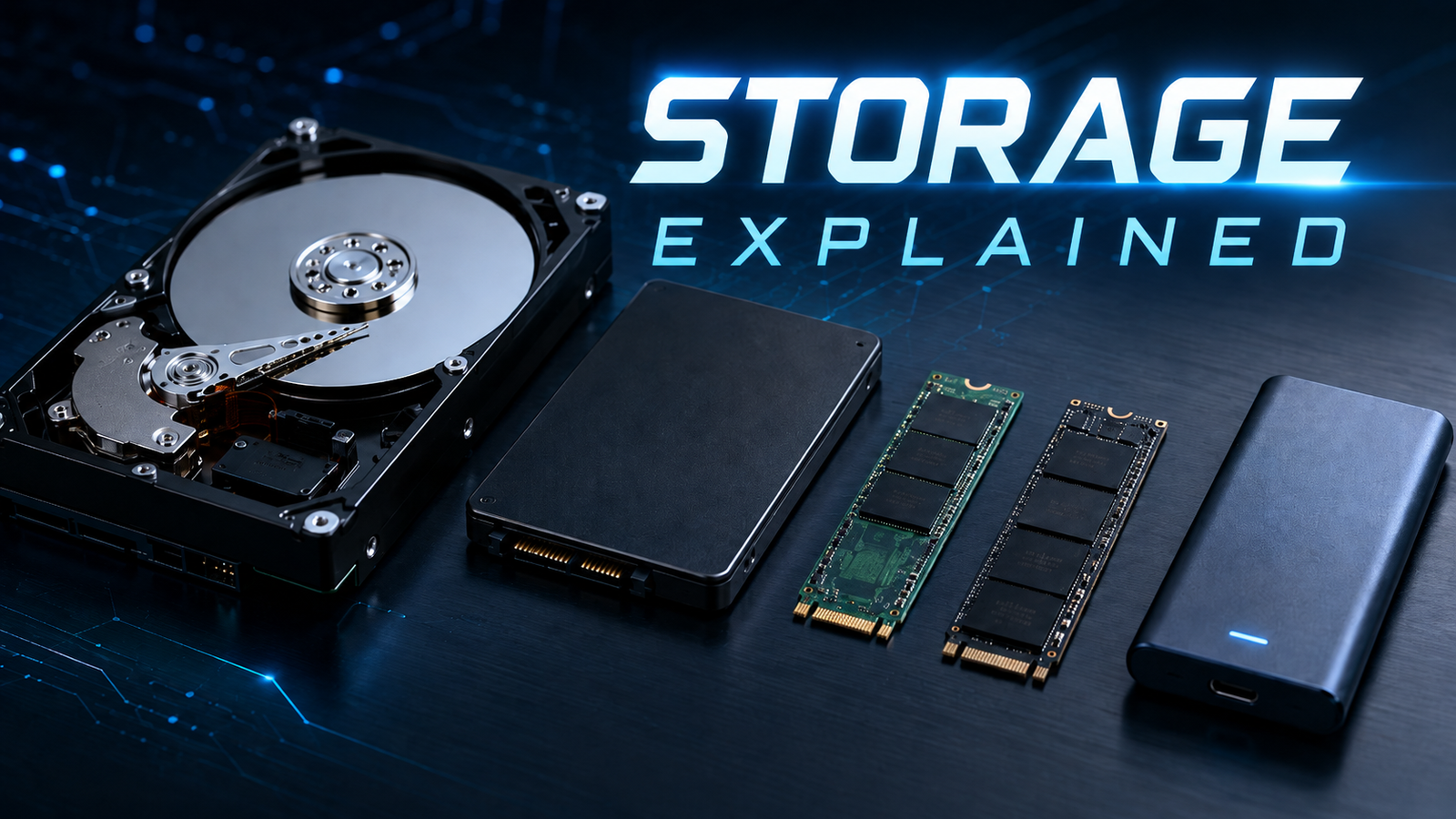
First, Understand the Difference Between SSD, SATA, M.2, and NVMe
Before comparing drives, it helps to clear up one of the biggest sources of confusion.
M.2 and NVMe are not the same thing.
Neither are SATA and SSD.
Here is the simplest way to think about it:
- HDD and SSD describe the general type of storage technology.
- M.2 usually describes the physical form factor of a drive.
- SATA and NVMe describe how storage communicates with the computer.
- PCIe is the high-speed connection used by NVMe drives.
That means you can have:
- A 2.5-inch SATA SSD
- An M.2 SATA SSD
- An M.2 NVMe SSD
Two drives can look almost identical while performing dramatically differently.
That distinction is extremely important when upgrading a computer.
1. Traditional Spinning Hard Drives — HDD
The traditional hard disk drive, or HDD, has been around for decades and is still widely used.
Unlike an SSD, a hard drive contains actual moving parts. Inside the enclosure are spinning magnetic platters, with tiny mechanical heads that move across those platters to read and write information.
Think of it somewhat like an extremely sophisticated record player.
Typical HDD Performance
Most consumer hard drives operate at either:
- 5,400 RPM
- 7,200 RPM
Sequential transfer speeds commonly fall somewhere around 100 to 250 MB/s, depending on the drive, workload, and where the data is located on the platter.
That is dramatically slower than modern SSD storage.
The biggest weakness isn’t necessarily sequential speed, however. It is access time.
Because the mechanical head physically has to move to different locations, accessing thousands of small files can be much slower than it is on an SSD.
That is why a computer running Windows or macOS from a hard drive can feel extremely sluggish even when the drive’s advertised transfer speed doesn’t sound terrible.
Where HDDs Still Make Sense
Hard drives remain extremely useful because they offer one major advantage:
Cheap capacity.
If you need 8TB, 12TB, 16TB, 20TB, or more storage, traditional hard drives can be substantially less expensive than buying the same amount of SSD storage.
HDDs are particularly good for:
- Large backup drives
- NAS systems
- Media libraries
- Security-camera storage
- Archived video projects
- Large photo collections
- Server storage
- Data that doesn’t need extremely fast access
If you’re building a 40TB or 80TB storage server, hard drives may make far more financial sense than SSDs.
Where HDDs Don’t Make Sense
I would generally avoid using a traditional hard drive as your primary operating-system drive in a modern computer.
Modern operating systems constantly access thousands of small files, databases, caches, applications, and background services. SSDs handle these workloads much better.
A hard drive can still store your files perfectly well, but running your entire computer from one can make an otherwise powerful system feel surprisingly slow.
Best For:
Backups, mass storage, NAS systems, archives, and inexpensive high-capacity storage.
2. SATA SSDs — The Classic Solid-State Upgrade
The arrival of consumer SSDs completely transformed personal computing.
Instead of spinning platters and moving mechanical parts, SSDs store information electronically using NAND flash memory.
This provides several advantages:
- Much faster access times
- Faster boot times
- Faster application loading
- Silent operation
- Lower power consumption
- Better resistance to vibration and physical movement
For years, the most common consumer SSD was the 2.5-inch SATA SSD.
These drives use essentially the same SATA interface traditionally used by laptop and desktop hard drives.
How Fast Is a SATA SSD?
The SATA III interface has a theoretical maximum bandwidth of approximately 6Gbps.
In real-world usage, good SATA SSDs generally top out around:
500 to 560 MB/s
That may sound slow compared with modern NVMe drives capable of several thousand megabytes per second, but don’t underestimate SATA SSDs.
For normal computer use, a SATA SSD can still feel extremely responsive.
If you take an older computer using a hard drive and replace it with a SATA SSD, the difference can be enormous.
Applications open faster. Files load faster. The operating system feels more responsive. Boot times can improve dramatically.
Who Should Use a SATA SSD?
SATA SSDs remain excellent for:
- Upgrading older desktops
- Upgrading older laptops
- Secondary game libraries
- General file storage
- Budget SSD builds
- Systems without NVMe support
- External SSD projects
The biggest issue is price.
As NVMe SSD prices have fallen, there are increasingly situations where an NVMe drive doesn’t cost much more than a SATA drive.
If your computer supports both and the prices are close, NVMe is usually the better choice.
Best For:
Older computer upgrades, inexpensive SSD storage, and systems that don’t support NVMe.
3. M.2 SATA SSDs — Small Doesn’t Always Mean Fast
This is where storage terminology starts confusing people.
An M.2 SATA SSD looks like the small circuit-board-style drives commonly associated with fast NVMe storage.
But internally, it is still using the SATA interface.
In other words:
An M.2 SATA SSD is usually not substantially faster than a 2.5-inch SATA SSD.
You might see maximum speeds around the same 500 to 560 MB/s range.
The primary advantage is physical size.
Instead of mounting a 2.5-inch drive somewhere in the computer and connecting SATA and power cables, an M.2 drive plugs directly into the motherboard.
This makes M.2 drives especially convenient in:
- Thin laptops
- Mini PCs
- Small-form-factor desktops
- Systems where cable management matters
Be Careful When Buying an M.2 Drive
This is one of the most important things to remember:
Not every M.2 slot supports every M.2 drive.
Some computers support:
- M.2 SATA only
Others support:
- M.2 NVMe only
Some support both.
Before purchasing an upgrade, check your computer or motherboard documentation.
Buying an M.2 drive does not automatically mean you’re buying NVMe storage.
Best For:
Older or specialized systems that specifically support M.2 SATA storage.
4. M.2 NVMe SSDs — The Modern Standard
For most modern high-performance computers, NVMe SSDs are now the storage technology to look for.
NVMe stands for Non-Volatile Memory Express.
Unlike SATA, which was originally designed around the limitations of mechanical hard drives, NVMe was created specifically for high-speed solid-state storage.
Most consumer NVMe drives use an M.2 form factor and communicate through the computer’s PCI Express bus.
This provides dramatically more bandwidth.
PCIe 3.0 NVMe
Older NVMe SSDs commonly use PCIe 3.0.
Good PCIe 3.0 drives can reach approximately:
3,000 to 3,500 MB/s
That is already roughly six times faster than the maximum sequential performance of SATA SSDs.
PCIe 4.0 NVMe
PCIe 4.0 roughly doubles the available bandwidth.
High-end PCIe 4.0 SSDs can reach approximately:
7,000 to 7,500 MB/s
These drives remain an excellent choice for modern computers.
PCIe 5.0 NVMe
PCIe 5.0 pushes storage performance even further.
High-performance PCIe 5.0 drives can exceed:
10,000 MB/s, with some reaching approximately 14,000 MB/s or more in ideal sequential workloads.
Those numbers are impressive, but they don’t necessarily mean your computer will feel twice as fast as one using a good PCIe 4.0 SSD.
That brings us to an important point.
Don’t Buy Storage Based Only on the Advertised Speed
Storage companies love putting enormous numbers on the box.
7,400 MB/s!
12,000 MB/s!
14,000 MB/s!
Those numbers usually represent sequential transfer performance under favorable conditions.
Sequential speed matters when you’re moving very large files, but many everyday computer tasks consist of accessing thousands of much smaller files.
That means things like:
- Random read performance
- Random write performance
- Latency
- SSD controller quality
- NAND quality
- Cache design
- Operating-system optimization
can also significantly affect how responsive a drive feels.
Going from a hard drive to virtually any decent SSD can feel revolutionary.
Going from a 500 MB/s SATA SSD to a 7,000 MB/s NVMe SSD is noticeable in certain situations.
Going from a 7,000 MB/s NVMe SSD to a 14,000 MB/s NVMe SSD may be much harder to notice during normal web browsing or office work.
5. PCIe Generations Explained
Because NVMe SSDs use PCI Express, you’ll often see drives labeled:
- PCIe Gen 3
- PCIe Gen 4
- PCIe Gen 5
Each newer generation dramatically increases available bandwidth.
However, your motherboard and processor also need to support the appropriate PCIe generation.
A PCIe 4.0 SSD installed in a PCIe 3.0 system will normally operate at PCIe 3.0 speeds.
Likewise, installing a PCIe 5.0 SSD into a PCIe 4.0 slot doesn’t magically give your computer PCIe 5.0 performance.
Fortunately, PCIe is generally backward compatible, making upgrades relatively straightforward.
6. M.2 Drive Sizes — What Does 2280 Mean?
You may see M.2 SSDs described with numbers such as:
2230, 2242, 2260, or 2280
These numbers describe the drive’s physical dimensions.
For example:
2280 = 22mm wide and 80mm long.
M.2 2280 is extremely common in desktop computers and laptops.
Smaller formats such as M.2 2230 are commonly used in compact devices and handheld gaming systems.
Before upgrading, make sure your device physically supports the drive length you’re buying.
7. External SATA SSDs
An internal SATA SSD can also be placed inside an external USB enclosure.
External SATA SSDs are great when you want:
- Portable storage
- Faster backups than a hard drive
- A photo library
- A music library
- General file storage
Because the internal SATA drive itself is limited to around 550 MB/s, an extremely high-speed Thunderbolt enclosure usually won’t make it substantially faster.
For SATA SSDs, standard USB connections are often perfectly adequate.
8. External NVMe SSDs
External NVMe storage is one of the most useful storage options available today.
Take an M.2 NVMe SSD, put it inside a suitable enclosure, and you can create a very fast portable drive.
But your speed will depend heavily on the connection.
For example, depending on the exact hardware and protocol, external SSDs can operate around:
- 500 MB/s
- 1,000 MB/s
- 2,000 MB/s
- 3,000+ MB/s
The SSD inside the enclosure may technically be capable of 7,000 MB/s, but it cannot exceed the bandwidth available through the external interface.
This is why pairing the right drive with the right enclosure matters.
9. USB vs USB4 vs Thunderbolt Storage
External storage performance depends heavily on the connection between the drive and your computer.
A fast NVMe drive connected through a slow USB interface will be bottlenecked.
Conversely, putting a relatively slow SATA SSD into an expensive high-performance Thunderbolt enclosure doesn’t accomplish much.
For professional workflows, technologies such as USB4 and Thunderbolt allow extremely fast external SSD configurations.
These are especially valuable for people working with:
- 4K video
- 6K video
- 8K video
- RAW photography
- Large audio libraries
- Virtual machines
- Large development projects
For many Mac users, a high-quality Thunderbolt NVMe SSD can even feel surprisingly similar to internal storage for certain workflows.
10. U.2 and Enterprise NVMe Storage
Another type of NVMe storage you may encounter is U.2.
U.2 SSDs are much more common in workstations, servers, and enterprise environments than ordinary consumer computers.
Unlike tiny M.2 drives, U.2 SSDs typically use a larger 2.5-inch-style enclosure.
This gives manufacturers more room for:
- NAND flash
- Larger controllers
- Better cooling
- Power-loss protection
- Higher endurance
Enterprise SSDs are often designed to sustain heavy workloads continuously.
For a normal home computer, however, U.2 storage is usually unnecessary.
Best For:
Servers, enterprise storage, high-end workstations, and environments requiring exceptional endurance.
11. SAS Hard Drives and SSDs
Another technology you may see in servers is SAS, or Serial Attached SCSI.
SAS drives are designed primarily for enterprise environments.
Compared with normal consumer SATA drives, enterprise SAS drives may offer advantages such as:
- Higher reliability
- Better error handling
- Dual-port connectivity
- Heavy-duty 24/7 operation
- Enterprise RAID compatibility
For normal consumers, SAS generally isn’t worth pursuing.
For server administrators and enterprise storage systems, however, it remains important.
12. eMMC Storage
At the lower end of the market you’ll sometimes encounter eMMC storage.
eMMC is essentially flash storage that’s soldered directly onto the device’s motherboard.
It has commonly appeared in:
- Budget laptops
- Chromebooks
- Tablets
- Embedded devices
It is inexpensive and compact, but it is typically much slower than a quality NVMe SSD.
It’s also generally not user-upgradeable.
If you are comparing two inexpensive computers and one has eMMC while another has a real NVMe SSD, the NVMe system will usually be the much more desirable option.
13. UFS Storage
UFS, or Universal Flash Storage, is another form of flash storage most commonly associated with smartphones and mobile devices.
UFS is significantly more advanced than older eMMC technology and can offer much higher performance.
While it isn’t typically something you’ll purchase as a desktop computer upgrade, it’s worth understanding because modern phones, tablets, and other portable electronics increasingly depend on this type of storage.
14. SD and microSD Cards
SD and microSD cards are another category entirely.
They’re excellent for:
- Cameras
- Drones
- Handheld gaming devices
- Smartphones that support expandable storage
- Portable file transfer
- Temporary backups
However, SD cards vary dramatically in performance and endurance.
A high-end SD card designed for professional cameras is very different from an inexpensive card designed simply to store files.
For demanding video recording, pay close attention to ratings such as:
- UHS-I
- UHS-II
- U1
- U3
- V30
- V60
- V90
These ratings help indicate whether a card can sustain the write speeds required by high-bitrate video recording.
15. What Is the Best Storage for a Gaming PC?
For most gaming computers, an NVMe SSD is the best choice.
A good PCIe 4.0 NVMe drive offers an excellent balance of:
- Performance
- Price
- Capacity
- Heat output
- Compatibility
You don’t necessarily need the fastest PCIe 5.0 drive available.
Most games benefit tremendously from being moved from a hard drive to an SSD, but the real-world difference between a good PCIe 4.0 SSD and an extremely expensive PCIe 5.0 model can be much smaller.
A smart gaming configuration might be:
1TB or 2TB NVMe SSD for Windows and your primary games
plus
A larger secondary SSD or HDD for less frequently used games and files.
16. What Is Best for Video Editing?
Video editing is one workload where storage speed really matters.
Editors constantly work with enormous files.
High-bitrate 4K, 6K, and 8K footage can place heavy demands on storage, especially when working with multiple camera streams.
For serious video editing, I’d generally favor:
High-performance NVMe storage.
A professional editing setup might contain several storage tiers:
Internal NVMe SSD:
Operating system, applications, and active projects.
Fast external NVMe SSD:
Current media files or projects that need to move between machines.
Large HDD or NAS:
Completed project archives.
This gives you SSD performance where it matters while avoiding the enormous expense of storing everything permanently on high-end SSDs.
17. What Is Best for Photography?
Photographers benefit from SSD performance as well, particularly when working with large RAW libraries.
Applications such as Lightroom and Photoshop can generate substantial caches and constantly access previews and image files.
A good arrangement is:
SSD: Applications, Lightroom catalogs, caches, and current projects.
Large SSD or HDD: Main photo library.
Additional HDD/NAS/cloud backup: Backup copy.
You rarely need a cutting-edge PCIe 5.0 SSD just to edit photographs, but moving from an HDD to practically any good SSD can substantially improve responsiveness.
18. What Is Best for Everyday Computing?
If you’re browsing the web, writing documents, watching videos, using email, and doing basic photo editing, you don’t need the fastest SSD available.
A mainstream NVMe SSD is more than adequate.
Even an older SATA SSD can deliver an excellent experience.
For most everyday users, I would prioritize:
- Enough storage capacity
- A reliable drive
- Reasonable performance
- A good warranty
before paying significantly more for benchmark-leading speeds.
19. What Is Best for Backups?
Backups are one area where traditional hard drives still dominate.
For backup storage, capacity is usually more important than extreme speed.
A 16TB hard drive may be far more useful for backups than a much faster but much smaller SSD.
For most people:
External HDDs are excellent for large local backups.
For more advanced users:
NAS systems with multiple hard drives provide centralized storage and backup capabilities.
But remember one important rule:
RAID is not a backup.
A RAID array may protect against a drive failure, but it doesn’t necessarily protect you from:
- Accidental deletion
- Malware
- Theft
- Fire
- File corruption
- Catastrophic hardware failure
Important data should ideally exist in multiple locations.
20. What Is Best for a NAS?
Hard drives remain the standard choice for many Network Attached Storage systems because they provide tremendous capacity for the money.
Some NAS systems also use SSDs for:
- Caching
- High-speed storage pools
- Virtual machines
- Databases
- Frequently accessed files
For a home media server storing dozens of terabytes of video, HDDs are usually the practical choice.
For a business database server requiring thousands of rapid transactions, enterprise SSDs may make much more sense.
21. SSD Endurance: What Is TBW?
When shopping for SSDs, you may see an endurance rating called TBW, which stands for:
Terabytes Written
For example, a drive rated for 600 TBW is designed to tolerate approximately 600 terabytes of writes under the manufacturer’s warranty specifications.
Higher-capacity SSDs often have higher endurance ratings.
For average users, SSD endurance usually isn’t something to worry excessively about.
For workloads involving enormous amounts of continuous writes—servers, databases, professional video caching, and other intensive applications—endurance becomes much more important.
22. TLC vs QLC NAND
Not all SSD flash memory is identical.
Two common NAND types you’ll encounter are TLC and QLC.
TLC
TLC stores three bits per memory cell.
It generally provides a strong combination of:
- Performance
- Endurance
- Cost
For performance-focused SSDs, TLC is often desirable.
QLC
QLC stores four bits per cell.
That allows manufacturers to store more information per memory cell, helping reduce cost and increase capacity.
The tradeoff is that QLC can have:
- Lower endurance
- Slower sustained write speeds
- Greater dependence on caching
QLC isn’t necessarily bad.
For normal desktop use, gaming, and media storage, a good QLC SSD can work perfectly well.
For heavy professional write workloads, however, TLC may be preferable.
23. Why Some SSDs Suddenly Slow Down
You may buy an SSD advertised at 7,000 MB/s and then discover that it becomes dramatically slower during a huge file transfer.
Why?
Many SSDs use part of their NAND as a high-speed SLC-style cache.
As long as you’re writing into that cache, performance can be extremely high.
Once the cache fills, the drive must write directly to its native TLC or QLC flash.
Performance may then drop substantially.
This is one reason professional reviews matter.
Two SSDs advertising the same maximum speed can behave very differently during a 500GB sustained transfer.
24. DRAM vs DRAM-Less SSDs
Some SSDs contain dedicated DRAM memory that helps the controller keep track of where data is physically stored.
Other SSDs are DRAM-less to reduce cost and power consumption.
Modern DRAM-less NVMe drives can still perform very well, especially when technologies such as Host Memory Buffer are used.
However, premium SSDs designed for sustained high-performance workloads often use more sophisticated controller and cache configurations.
For a basic laptop or gaming system, a good DRAM-less drive can be perfectly acceptable.
For intensive professional workloads, the additional performance consistency of a higher-end SSD may be worthwhile.
25. Heat Matters With Fast NVMe SSDs
The faster SSDs become, the more heat they can generate.
This is particularly noticeable with high-performance PCIe 4.0 and PCIe 5.0 drives.
If an SSD becomes too hot, it may reduce its performance to protect itself. This is called thermal throttling.
That is why many motherboards now include M.2 heatsinks.
Some high-end SSDs even ship with substantial dedicated heatsinks.
If you’re building a high-performance workstation, proper SSD cooling should not be ignored.
So Which Type of Storage Should You Buy?
Here is the simplest way to choose.
For Your Main Computer Drive
Choose an NVMe SSD.
PCIe 4.0 is an excellent sweet spot for most computers.
For a Gaming PC
Choose a 1TB, 2TB, or larger NVMe SSD.
Prioritize capacity and reliability before paying extra for extreme benchmark numbers.
For an Older Computer
Choose a SATA SSD if NVMe isn’t supported.
This can be one of the best upgrades you can make to an aging computer.
For Video Editing
Choose a high-performance NVMe SSD, internally or through a fast external connection such as Thunderbolt or USB4.
For Mass Storage
Choose a large HDD.
For Backups
Choose an external HDD, NAS, or a combination of local and cloud storage.
For Servers
Depending on the workload, consider:
- Enterprise HDDs
- Enterprise SATA SSDs
- U.2/U.3 NVMe SSDs
- Enterprise M.2 NVMe
For Portable Storage
Choose an external NVMe SSD if speed matters or an external HDD if capacity and cost matter more.
The Best Storage Isn’t Always the Fastest Storage
It’s easy to look at storage as a simple race:
14,000 MB/s must be better than 7,000 MB/s, which must be better than 550 MB/s.
Technically, yes.
Practically, the answer is more complicated.
The best storage device is the one that matches the workload.
A video editor transferring hundreds of gigabytes of footage may genuinely benefit from an extremely fast NVMe SSD.
Someone storing 20TB of family videos probably benefits far more from inexpensive hard drives.
A gamer may be better served buying a 4TB midrange NVMe SSD instead of spending the same money on a 2TB flagship SSD.
And someone upgrading a 10-year-old computer may see a bigger real-world improvement from a basic SATA SSD than another person sees upgrading from PCIe 4.0 to PCIe 5.0.
Storage is about balancing speed, capacity, reliability, endurance, compatibility, and price.
Once you understand those tradeoffs, the alphabet soup of SSDs, HDDs, SATA, NVMe, M.2, and PCIe becomes much easier to navigate.
And when in doubt, remember one simple rule:
Use fast SSD storage for the files you’re actively working with, and inexpensive high-capacity storage for the files you’re keeping.