
Taking screenshots has become one of the most useful everyday computer skills in 2026. Whether you are saving a receipt, sharing a software issue, creating tutorials, editing videos, or posting something online, screenshots are now part of almost everyone’s workflow. Both Windows PCs and Apple Macs include built-in screenshot tools that are far more advanced and easier to use than they were years ago. The good news is you no longer need third-party software for most screenshot tasks because modern operating systems already include fast shortcuts, editing tools, and even screen recording features.
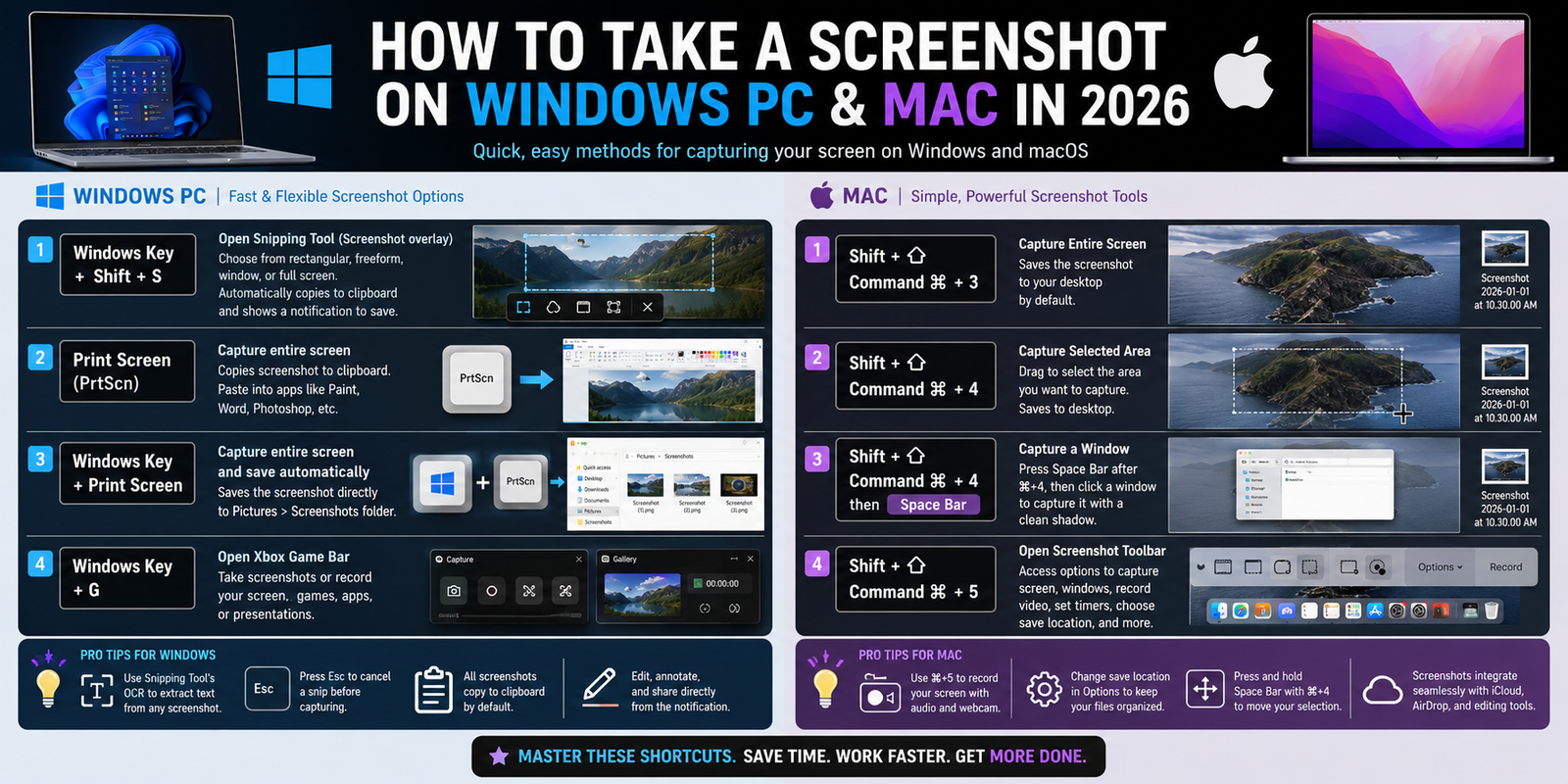
On a Windows PC, the fastest way to capture a screenshot in 2026 is usually by pressing the Windows Key + Shift + S. This opens Microsoft’s Snipping Tool overlay, which allows you to select exactly what you want to capture. You can grab a rectangular area, a freeform selection, a single window, or the entire screen. Once captured, the screenshot automatically copies to your clipboard and can also be saved directly from the notification that appears. Microsoft has continued improving the Snipping Tool in Windows 11 and newer updates, adding features like OCR text extraction, annotation tools, and quick sharing options.
Another popular screenshot method on Windows is pressing the Print Screen (PrtScn) key. On many newer laptops, this key may require holding the Fn key as well depending on the keyboard design. Pressing Print Screen captures the full display and copies it to the clipboard so it can be pasted into apps like Paint, Photoshop, Word, or messaging apps. If you want Windows to instantly save the image as a file, pressing Windows Key + Print Screen automatically stores the screenshot in the Pictures > Screenshots folder. This remains one of the quickest ways to capture and organize multiple screenshots rapidly.
Windows users who create tutorials or gaming content often use the built-in Xbox Game Bar as well. Pressing Windows Key + G opens the Game Bar overlay, which supports screenshots and full video screen recordings. In 2026, this feature is commonly used not just for gaming but also for recording software demonstrations, presentations, and troubleshooting steps. Since Microsoft has integrated AI tools into Windows, many users now combine screenshots with AI-powered search and OCR features to quickly extract text or summarize information directly from captured images.
On a Mac, Apple continues to offer some of the best screenshot shortcuts in the industry because they are simple, fast, and extremely reliable. The most common shortcut is Shift + Command + 3, which instantly captures the entire screen and saves the image directly to the desktop by default. If you only want part of the screen, pressing Shift + Command + 4 turns the cursor into a selection tool that lets you drag over a specific area. Many Mac users rely on this shortcut daily because it is one of the fastest screenshot systems available on any computer.
Apple also includes a more advanced screenshot control center accessed with Shift + Command + 5. This opens a floating toolbar that allows you to capture the full screen, selected windows, custom regions, or record video of the display. In 2026, this tool is especially useful for YouTubers, teachers, software reviewers, and remote workers because it combines screenshots and screen recording into one streamlined interface. Users can also choose where files save, set timers, enable microphone recording, and preview screenshots instantly after capture.
One feature many people love on the Mac is how easy it is to capture a single app window cleanly. By pressing Shift + Command + 4 and then tapping the Space Bar, the cursor changes into a camera icon. Clicking on a window captures it with a polished shadow effect that looks professional in articles, presentations, and thumbnails. Apple’s screenshot system also integrates smoothly with iCloud, AirDrop, and editing tools, making it easy to quickly move screenshots between Apple devices.
In 2026, both Windows PCs and Macs now treat screenshots as part of a broader productivity system rather than just static images. AI features built into both operating systems can recognize text, identify objects, search screenshots, and even summarize content automatically. This has made screenshots more valuable than ever for students, businesses, creators, and everyday users alike. Whether you use Windows or macOS, learning a few keyboard shortcuts can dramatically speed up your workflow and make sharing information much easier.
The best approach is to memorize just two or three screenshot shortcuts that match your workflow. On Windows, most people only need Windows + Shift + S and Windows + Print Screen. On the Mac, learning Shift + Command + 3, 4, and 5 covers nearly everything. Once these shortcuts become muscle memory, taking screenshots becomes second nature and can save an enormous amount of time throughout the day.