
Your IP address is like your device’s digital mailing address. It helps websites, apps, and networks know where to send information. There are two common types of IP addresses you may want to find: your public IP address and your private IP address.
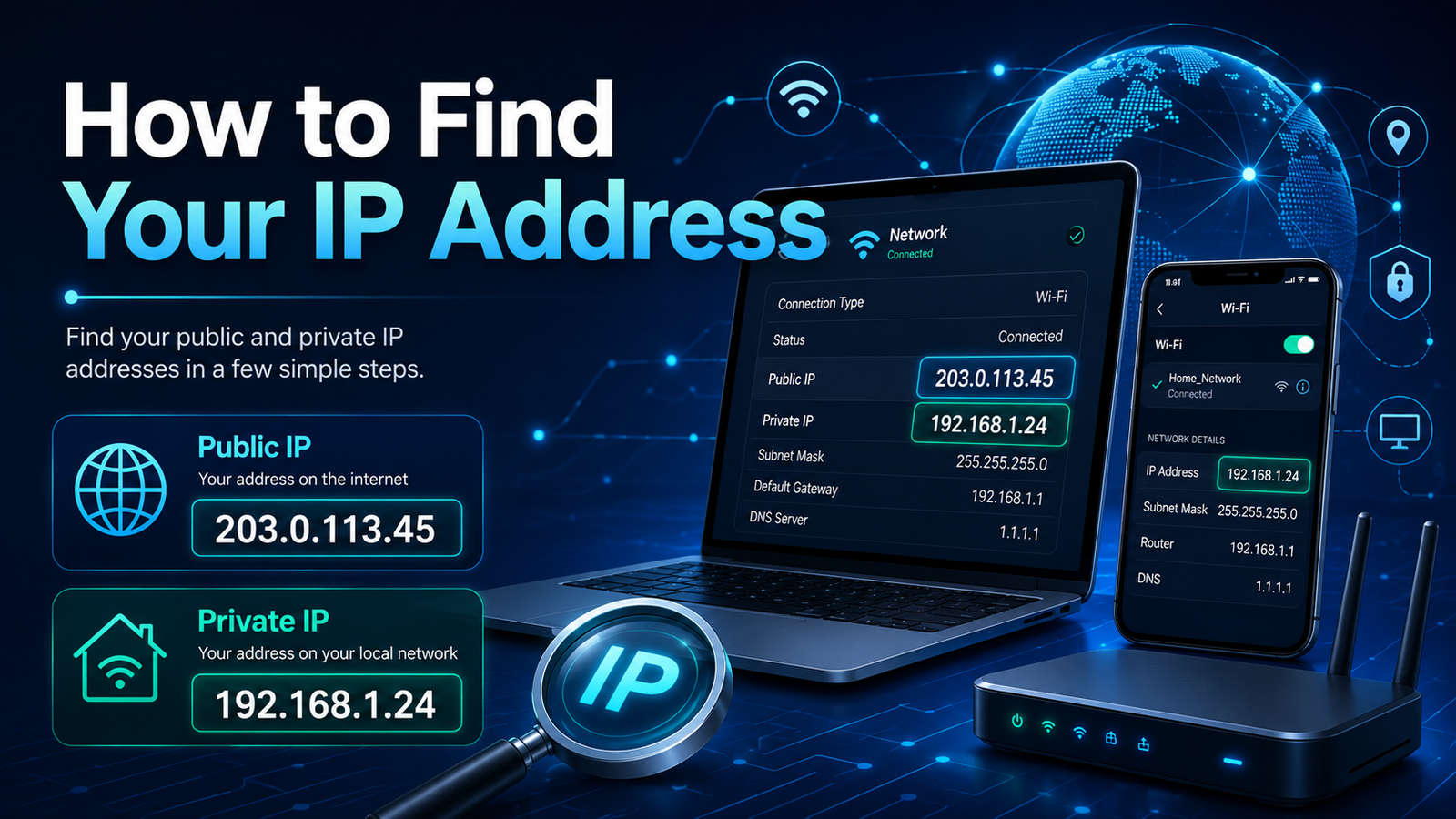
Your public IP address is the address the internet sees when you visit websites. The easiest way to find it is to open a browser and search Google for:
What is my IP address?
Google will usually show your public IP address at the top of the results. You can also visit websites like WhatIsMyIP.com or IPChicken.com to see it.
Your private IP address is the address your device uses on your home or office network. This is useful when setting up printers, troubleshooting Wi-Fi, or connecting devices together.
How to Find Your IP Address on Windows
On a Windows computer, click the Start button and type Command Prompt. Open it, then type:
ipconfig
Press Enter. Look for the line that says IPv4 Address. That is your private IP address.
How to Find Your IP Address on Mac
On a Mac, click the Apple menu, then go to System Settings. Choose Wi-Fi or Network, then select your connected network. Your IP address should be listed in the network details.
You can also open Terminal and type:
ipconfig getifaddr en0
This usually shows your Wi-Fi IP address.
How to Find Your IP Address on iPhone
Open Settings, tap Wi-Fi, then tap the information icon next to your connected network. Your IP address will be listed under the network details.
How to Find Your IP Address on Android
Open Settings, go to Network & Internet or Connections, then tap your connected Wi-Fi network. Look for IP address in the network information.
Final Thoughts
Finding your IP address is simple once you know where to look. Use your public IP address when checking how the internet sees your connection, and use your private IP address when troubleshooting devices on your local network.