
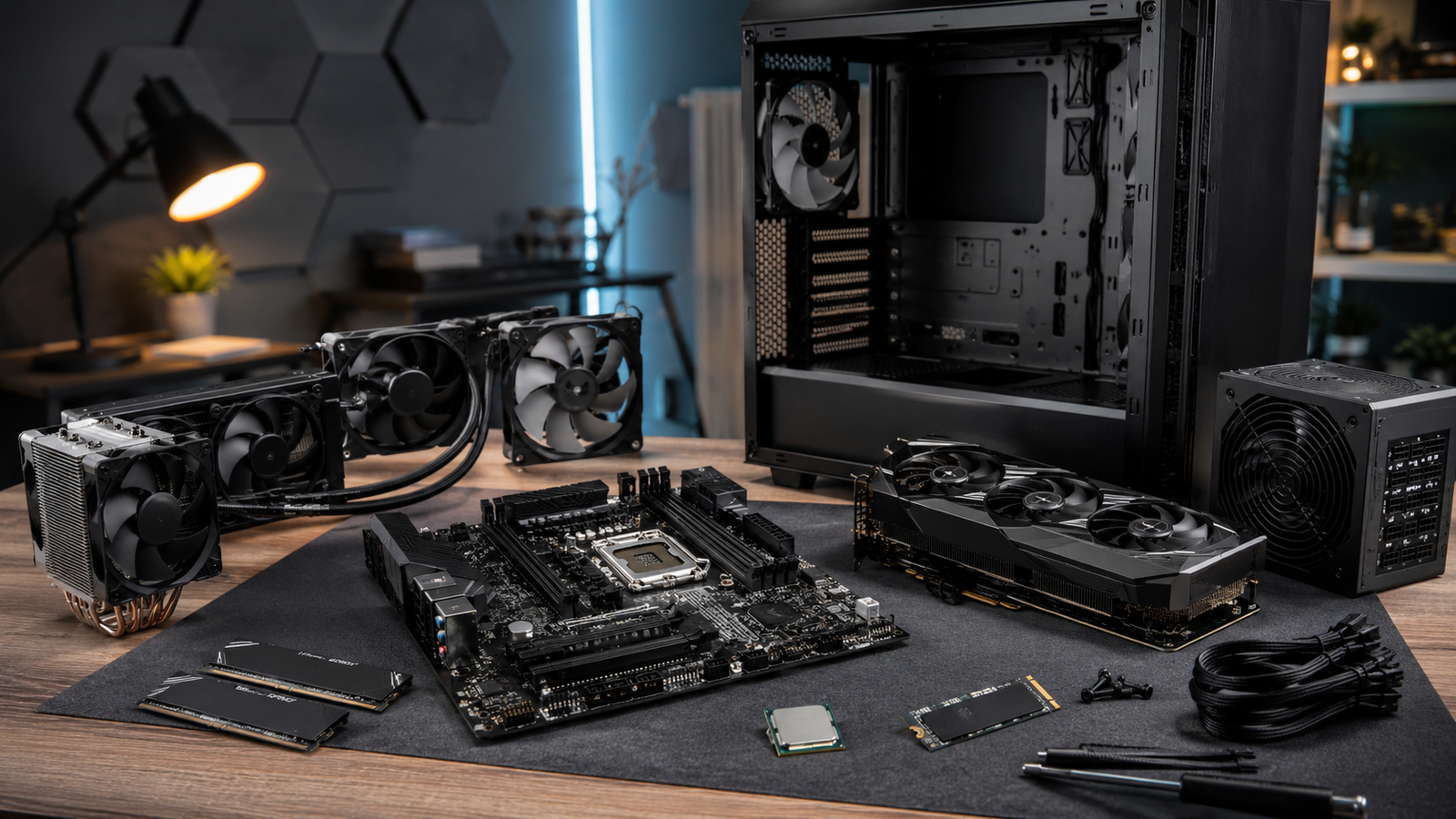
Building your own PC can be one of the best ways to get exactly the computer you need. Instead of accepting the hardware selected by a prebuilt computer manufacturer, you can decide how much processing power, graphics performance, storage, memory, cooling, and upgrade potential your system should have. Building a PC can also help you understand how computers work and make future repairs or upgrades easier.
The biggest advantage of building your own computer is flexibility. A gaming PC has different requirements from an office computer, a video-editing workstation, or a system designed for 3D rendering. Gamers may want to spend more of their budget on the graphics card, while video editors may benefit from a powerful processor, additional memory, and large amounts of fast storage. Someone building a basic family computer may be able to save money by choosing a processor with integrated graphics instead of purchasing a separate graphics card.
Before buying anything, decide what you plan to do with the computer. Consider the programs you use, the games you want to play, the resolution of your monitor, and how long you want the system to last before it needs an upgrade. You should also set a complete budget that includes the computer itself, operating system, monitor, keyboard, mouse, speakers, and other accessories. It is easy to spend too much on one impressive component and then run out of money for the rest of the system.
Choosing the Processor
The central processing unit, commonly called the CPU or processor, handles instructions, calculations, operating-system tasks, and much of the general work performed by the computer. The processor affects how responsive the system feels when opening applications, multitasking, compressing files, editing videos, compiling software, rendering projects, and performing other demanding tasks.
Processors are commonly compared by their number of cores, number of threads, clock speeds, cache capacity, power consumption, and overall architecture. A core is an individual processing unit within the processor. A processor with more cores can complete more tasks at the same time, but the number of cores is not the only factor that determines performance. A newer processor with fewer cores may outperform an older processor with more cores because of architectural improvements and stronger performance from each core.
For basic web browsing, email, document creation, and media streaming, an entry-level or midrange processor is usually sufficient. Gaming computers generally benefit from processors with strong single-core performance and enough cores to handle newer games, background programs, voice chat, and streaming software. Professional workloads such as video editing, 3D rendering, engineering, software development, and scientific computing may benefit from processors with many cores and threads.
You should avoid automatically purchasing the most expensive processor available. A high-end CPU may provide only a small improvement in gaming when paired with a midrange graphics card. In that situation, spending less on the processor and more on the graphics card may produce significantly better gaming performance. A more powerful processor makes sense when your applications can take advantage of its additional cores or when you want the system to handle demanding workloads for several years.
It is also important to determine whether the processor includes integrated graphics. Integrated graphics allow the computer to produce a display without a separate graphics card. They are usually sufficient for office work, streaming, web browsing, and basic games. Integrated graphics can also be helpful for troubleshooting because you may still be able to use the computer if the dedicated graphics card develops a problem.
Selecting a Compatible Motherboard
The motherboard is the main circuit board that connects the processor, memory, graphics card, storage drives, power supply, cooling equipment, and external devices. It determines which components your computer can use and how many upgrades you can install later.
The first compatibility requirement is the processor socket. A motherboard must have the correct socket for your chosen processor. Even when processors use the same physical socket, they may require a particular chipset or BIOS version. Always check the motherboard manufacturer’s processor-support list before purchasing the board.
The motherboard’s chipset controls many of its features. Higher-end chipsets may support additional high-speed USB ports, more PCI Express lanes, better overclocking capabilities, multiple graphics or expansion cards, additional storage drives, and more advanced networking. However, many users do not need the most expensive chipset. A good midrange motherboard often provides everything required for gaming, productivity, and general home use.
Power delivery is another consideration. The voltage regulator module, or VRM, supplies clean and stable power to the processor. A basic motherboard may work well with an entry-level processor but may not be ideal for a high-power CPU running demanding workloads for long periods. Better motherboards often include stronger power delivery and larger heatsinks around the processor socket.
You should also examine the number of memory slots, M.2 storage slots, SATA ports, fan headers, USB connections, and expansion slots. Some motherboards include built-in Wi-Fi and Bluetooth, while others require a separate adapter. The rear input and output panel should have enough USB ports for your keyboard, mouse, external drives, printer, microphone, camera, and other devices.
Avoid paying for motherboard features that you will never use. Expensive boards may include extreme overclocking features, elaborate lighting, premium audio hardware, or support for several expansion cards. Those features can be valuable for certain users, but a less expensive board may provide the same real-world performance for a typical gaming or productivity system.
Choosing the Right Graphics Card
The graphics processing unit, or GPU, creates the images displayed on your monitor. It is one of the most important components in a gaming PC and can also accelerate video editing, 3D modeling, animation, artificial intelligence, engineering, and other professional applications.
For gaming, the graphics card often has a larger effect on performance than any other component. A faster graphics card can allow you to play at higher resolutions, increase graphical settings, use higher frame rates, and enable features such as ray tracing. The right card depends heavily on whether you plan to play at 1080p, 1440p, or 4K resolution.
A graphics card that performs well at 1080p may struggle when running the same game at 4K because the GPU must render many more pixels. High-refresh-rate monitors also require more graphics performance. If you own a 144Hz or 240Hz monitor, you may want a stronger card to produce frame rates that take advantage of the display.
Video memory, usually called VRAM, stores textures, frame data, and other graphical information. Higher resolutions, detailed textures, professional projects, and some newer games can use large amounts of VRAM. However, VRAM capacity should not be used as the only measure of graphics performance. A slower graphics card with more memory can still perform worse than a faster card with less memory.
You should check whether the programs you use perform better with a particular brand or model of graphics card. Some professional applications are optimized for specific GPU technologies. Video editors, 3D artists, engineers, and artificial-intelligence users should review compatibility and performance results for their exact software instead of relying only on gaming benchmarks.
Graphics cards can also consume a significant amount of power and generate considerable heat. Before buying one, verify that it will physically fit inside your case and that your power supply has enough capacity and the correct power connectors. Large graphics cards may occupy three or more expansion slots and can interfere with other components.
For a basic office computer, a separate graphics card may be unnecessary. A processor with integrated graphics can reduce the system’s cost, power consumption, heat output, and noise. You can usually add a dedicated graphics card later if your needs change.
Determining How Much Memory You Need
Random access memory, or RAM, temporarily stores information that the processor and applications need to access quickly. Having enough memory allows the computer to run several applications, browser tabs, games, and background services without slowing down.
For a basic home or office computer, 16GB of RAM is a reasonable starting point. It is generally enough for web browsing, email, streaming, schoolwork, office programs, and light photo editing. A computer with only 8GB may still perform basic tasks, but it can become limited when many browser tabs or applications are open.
A gaming computer will often benefit from 32GB of RAM, especially when running newer games, communication software, recording tools, game launchers, and web browsers at the same time. Although many games can still run with 16GB, 32GB provides more breathing room and may help the computer remain useful for a longer period.
Content creators, engineers, programmers, musicians, and professional users may need 64GB or more. High-resolution video editing, large photography projects, virtual machines, software development, 3D rendering, and scientific workloads can use substantial amounts of memory.
Memory speed and latency also affect performance. Faster memory can improve results in some games and applications, but the benefit depends on the processor and workload. Purchasing enough memory is usually more important than buying the fastest kit available. A slightly slower 32GB kit is often a better choice than a very fast 16GB kit if your applications regularly exceed 16GB.
It is usually best to purchase memory as a matched kit. For example, a 32GB kit containing two 16GB modules can enable dual-channel operation and provide better performance than a single 32GB module in many systems. You should install the modules in the motherboard slots recommended in the manual.
You should also verify whether your processor and motherboard use DDR4 or DDR5 memory. The two standards are physically different and cannot be installed in the same slot. Motherboards typically support one memory generation or the other, not both.
Selecting Storage for the Operating System and Files
Storage is where the operating system, applications, games, photographs, videos, documents, and other files are permanently stored. The type of drive you choose affects startup times, application loading, file transfers, and overall system responsiveness.
A solid-state drive, or SSD, should normally be used as the main system drive. SSDs are much faster than traditional mechanical hard drives because they do not contain moving parts. A computer with an SSD can start quickly, open programs faster, and feel more responsive during everyday use.
NVMe SSDs connect to an M.2 slot on the motherboard and communicate through PCI Express. They can deliver much faster speeds than older SATA SSDs. However, the difference between a high-quality SATA SSD and a very fast NVMe drive may not always be noticeable during basic tasks. Extremely fast NVMe drives are most useful for large file transfers, professional video work, demanding content creation, and other storage-intensive workloads.
Capacity is often more important than achieving the highest advertised speed. A 1TB SSD is a practical starting point for many computers. Gamers may prefer 2TB or more because modern games can require large amounts of storage. Video editors and photographers may need several terabytes for project files, footage, previews, exports, and backups.
Traditional hard disk drives, or HDDs, still have a place in modern computers. They provide large amounts of storage at a lower cost per gigabyte than SSDs. They are useful for backups, archived projects, media libraries, security-camera recordings, and other files that do not need to load quickly. However, hard drives are slower, noisier, and more vulnerable to physical damage because they contain moving parts.
Some builders use a combination of drives. A fast NVMe SSD can hold the operating system, applications, and frequently used games, while a larger hard drive can store videos, photographs, backups, and archived files. This approach can provide a good balance between performance and storage capacity.
When comparing SSDs, consider more than the maximum advertised speed. Endurance, controller quality, memory type, warranty coverage, sustained performance, and reliability can be important. Less expensive SSDs may slow down substantially during long file transfers after their high-speed cache is filled.
Choosing a Safe and Reliable Power Supply
The power supply unit, or PSU, converts electricity from the wall into the voltages used by the computer’s components. It is one of the most important parts of the system, even though it does not directly increase gaming frame rates or application performance.
A power supply should have enough wattage for the processor, graphics card, storage drives, cooling equipment, and other hardware. The graphics card manufacturer will usually recommend a minimum power-supply capacity. It is wise to choose a model with some additional capacity so the unit is not constantly operating near its maximum output.
More wattage is not always better. A basic computer does not need an extremely powerful 1,000-watt power supply. The goal is to select a high-quality unit with appropriate capacity, strong safety protections, and enough connectors for your hardware.
Efficiency certifications such as 80 Plus Bronze, Gold, Platinum, or Titanium indicate how efficiently the power supply converts electricity under certain testing conditions. A more efficient unit can waste less electricity as heat and may run more quietly. However, efficiency certification does not automatically guarantee that a power supply is well built.
Build quality, voltage regulation, warranty coverage, internal components, and safety protections are equally important. A reputable power supply should include protections against overcurrent, overvoltage, overheating, overloads, and short circuits. A poor-quality unit can cause crashes, instability, excessive noise, or damage to other components.
Modular power supplies allow unused cables to be disconnected. Fully modular units can simplify cable management and improve airflow because you only install the cables you need. Semi-modular models permanently attach the essential motherboard and processor cables while allowing other cables to be removed. Non-modular units are usually less expensive but can leave extra cables inside the case.
Picking the Right Computer Case
The computer case holds and protects the hardware. It also has a major effect on airflow, cooling, noise, appearance, component compatibility, and ease of assembly.
Cases are usually designed for certain motherboard sizes, such as ATX, Micro-ATX, or Mini-ITX. A larger ATX case generally provides more room for components, cables, cooling systems, and future upgrades. Smaller cases save desk space but can be more difficult to build in and may restrict graphics-card size, cooling options, and storage capacity.
Airflow should be one of the main priorities when selecting a case. A case with a mesh front panel and clear intake paths can often keep components cooler than a case with a mostly sealed glass or plastic front. Better airflow may allow fans to run more slowly, reducing noise.
Check the maximum graphics-card length, processor-cooler height, power-supply length, radiator support, and number of drive mounts. A large graphics card or tower cooler may not fit inside a compact case. Product specifications should list these measurements.
Cable-management space is another useful feature. Cases with routing channels, Velcro straps, and room behind the motherboard tray can make the build look cleaner and improve airflow. Removable dust filters can make maintenance easier by reducing the amount of dust that enters the computer.
Appearance is a personal choice. Some builders prefer glass panels, RGB lighting, and visible components, while others want a simple, quiet case without lighting. A visually impressive case is not necessarily the best-performing case, so airflow and compatibility should still come first.
Cooling the Processor
The processor produces heat and must be cooled to operate safely. Some processors include a basic cooler, while others require you to purchase one separately. A cooler that is too small may cause the processor to run at high temperatures, produce excessive fan noise, or reduce its clock speed.
Air coolers use a heatsink, heat pipes, and one or more fans to move heat away from the processor. They are generally affordable, dependable, and easy to maintain. A quality tower air cooler can handle many midrange and high-performance processors.
Liquid coolers, commonly called all-in-one or AIO coolers, use a pump, tubing, radiator, and fans. They can provide strong cooling performance and may create a cleaner appearance around the processor socket. They can also be useful in cases where a large air cooler would not fit.
Liquid cooling is not automatically necessary for a high-performance PC. A large air cooler can often perform very well while costing less and containing fewer parts that can fail. Liquid coolers may be preferred for certain high-power processors, compact builds, heavy overclocking, or visual design preferences.
Before purchasing a cooler, check processor-socket compatibility, case clearance, memory clearance, and radiator support. Large air coolers can interfere with tall memory modules, while large radiators may conflict with the graphics card or motherboard heatsinks.
Planning Case Airflow and Fan Placement
Case fans bring cool air into the computer and remove warm air. A typical airflow setup uses front or bottom fans as intakes and rear or top fans as exhausts. This creates a path for cool air to pass over the graphics card, processor, motherboard, and storage devices.
Installing more fans does not always improve cooling. Poorly positioned fans can create turbulence or work against one another. A few well-placed fans can provide excellent cooling without producing unnecessary noise.
Fan size also matters. Larger fans can often move the same amount of air at lower speeds than smaller fans, which may reduce noise. Common sizes include 120mm and 140mm. Your case specifications will show which sizes and mounting locations are supported.
You should connect fans to motherboard headers when possible so their speeds can be controlled based on temperature. Fans running at maximum speed all the time can make the computer unnecessarily loud. Many motherboards allow you to create custom fan curves in the BIOS or system software.
Understanding Thermal Paste
Thermal paste fills microscopic gaps between the processor and the cooler. These surfaces may appear smooth, but small imperfections can trap air and reduce heat transfer. Thermal paste helps move heat efficiently from the processor into the cooler.
Many coolers include thermal paste or have it pre-applied. You generally do not need to purchase an expensive paste separately unless the cooler does not include it or you plan to reinstall the cooler later.
Using too much thermal paste can create a mess, while using too little may leave portions of the processor uncovered. A small amount placed near the center of the processor is usually enough because the mounting pressure spreads it across the surface.
Considering Networking and Wireless Features
Many motherboards include an Ethernet connection for wired networking. A wired connection is often preferred for gaming, large downloads, video calls, and file transfers because it can provide consistent speed and low latency.
Wi-Fi is useful when the computer cannot be located near the router. Some motherboards include built-in Wi-Fi and Bluetooth, while others require an add-in card or USB adapter. Built-in wireless support can simplify the build and reduce the number of accessories required.
Bluetooth is useful for wireless headphones, speakers, keyboards, mice, game controllers, and phones. Even if you plan to use Ethernet, choosing a motherboard with Wi-Fi and Bluetooth can provide additional flexibility.
When comparing networking features, consider the capabilities of your router and internet service. Paying extra for the newest networking standard may not provide a noticeable benefit if the rest of your network cannot support it.
Choosing an Operating System
A computer needs an operating system to manage hardware and run applications. Windows is commonly used for gaming, business software, and broad hardware compatibility. Linux can be an excellent option for programming, servers, privacy-focused systems, and users who prefer open-source software.
Before selecting an operating system, check whether your required programs and games are supported. Some applications are available only on certain operating systems, while others may have fewer features or require alternative software.
You should include the cost of an operating-system license in your budget. You will also need a USB flash drive to create the installation media. After installing the operating system, download motherboard, graphics, networking, and other hardware drivers from trusted sources.
Selecting a Monitor That Matches the Computer
The monitor is not installed inside the computer, but it should influence the components you choose. There is little reason to purchase an extremely powerful graphics card if you plan to use a basic 1080p, 60Hz display. Similarly, a weak graphics card may not provide a good experience with a high-resolution, high-refresh-rate monitor.
Resolution affects image sharpness and GPU workload. A 1080p monitor is easier for a graphics card to drive, while 1440p provides a sharper image and is popular for gaming and productivity. A 4K monitor offers excellent detail but requires more graphics power in demanding games.
Refresh rate determines how many times the display can update each second. A 144Hz or faster display can make games and general motion appear smoother than a 60Hz display. Competitive gamers may prioritize refresh rate, while photographers and designers may care more about color accuracy and resolution.
Panel quality, brightness, contrast, response time, viewing angles, high-dynamic-range support, and color accuracy should also be considered. The best monitor depends on whether you prioritize gaming, creative work, office productivity, media viewing, or a combination of uses.
Checking Compatibility Before You Buy
Compatibility should be reviewed before ordering any parts. The processor must fit the motherboard socket, the motherboard must support the memory type, the case must fit the motherboard, and the power supply must have enough capacity and the correct connectors.
The graphics card must fit inside the case and should not block equipment you need to install. The CPU cooler must fit the processor socket and case. The motherboard should have enough fan headers, storage connectors, and expansion slots.
You should also verify that the motherboard BIOS supports your processor. A motherboard may use the correct socket but still require a BIOS update before it can recognize a newer CPU. Some boards include a BIOS flash feature that allows an update without installing a working processor.
Online compatibility tools can help identify obvious problems, but they should not replace checking the official specifications from component manufacturers. Manual verification is especially important when building a compact PC.
Balancing the Budget
A balanced computer usually provides a better experience than one built around a single expensive component. For a gaming system, the graphics card may receive the largest portion of the budget, but the processor still needs to be fast enough to keep up. The power supply, case, and cooling system should also be capable of supporting the hardware safely.
For a video-editing computer, the processor, memory, graphics card, and storage all matter. Spending the entire budget on the processor while using only 16GB of memory and a small storage drive may create bottlenecks.
For a basic office PC, it may be better to spend money on a quality monitor, quiet cooling, reliable storage, and enough memory rather than a powerful graphics card that will rarely be used.
Avoid choosing parts based only on appearance, brand recognition, or the highest specification number. Actual performance tests, power consumption, temperatures, noise levels, warranty coverage, and software compatibility can be more useful than marketing claims.
Planning for Future Upgrades
A custom-built PC can be upgraded over time. You may be able to add more memory, install a larger SSD, replace the graphics card, improve the cooling system, or upgrade the processor.
Future upgradeability should be considered, but you should not overspend based entirely on upgrades that may never happen. Technology changes quickly, and a future processor may require a new motherboard or memory standard even if you purchase a premium motherboard today.
Leaving two memory slots available can make a future memory upgrade easier. Choosing a power supply with additional capacity can support a stronger graphics card later. A case with enough space and good airflow can accommodate larger components.
Storage is one of the easiest upgrades. Choosing a motherboard with several M.2 slots allows you to add more SSD capacity without replacing your existing drive.
Avoiding Common PC-Building Mistakes
One common mistake is spending too much on the processor and too little on the graphics card in a gaming build. Another is buying a power supply based only on wattage without considering quality. Some builders also purchase expensive motherboards with features they will never use.
Compatibility mistakes are also common. Builders may purchase the wrong memory generation, a cooler that is too tall for the case, or a graphics card that is too long. Others forget to check whether the motherboard includes Wi-Fi, enough fan headers, or the necessary USB connections.
Storage capacity can be underestimated. A small SSD may fill quickly after installing the operating system, applications, and several large games. Choosing a slightly larger drive at the beginning may be less expensive and more convenient than replacing it shortly afterward.
Another mistake is ignoring airflow. Powerful components installed in a poorly ventilated case may run hot and loud. Good airflow can improve performance, reduce fan noise, and potentially extend the life of the hardware.
Builders should also avoid touching component contacts, forcing connectors into place, or working on the system while it is connected to power. Read the manuals, work carefully, and verify cable connections before turning the computer on.
Final Thoughts
Building your own PC is largely about making balanced decisions. The most expensive parts are not always the best choices for your needs. A successful build uses components that are compatible, reliable, and appropriate for the programs and games you plan to run.
Start by deciding what the computer must accomplish, then select a processor and graphics card that match those goals. Choose enough memory and storage for your workload, a motherboard with the features you actually need, and a high-quality power supply that can safely support the system.
Do not overlook the case, cooling system, fans, monitor, operating system, and networking equipment. These components affect how the computer feels to use every day. A system that performs well but runs hot, produces excessive noise, or lacks enough storage may not provide a satisfying experience.
With careful planning, a custom-built PC can deliver excellent performance, easier repairs, better upgrade options, and greater value than many prebuilt systems. The best PC is not necessarily the one with the highest benchmark scores. It is the one that provides the right combination of performance, reliability, features, and cost for the person who will use it.