
A slow Mac can be incredibly frustrating, especially because Macs usually feel fast, smooth, and reliable for years. But even a good Mac can start to feel sluggish over time. Apps may take longer to open, Safari may feel less responsive, the spinning beachball may show up more often, or your Mac may simply feel slower than it used to.
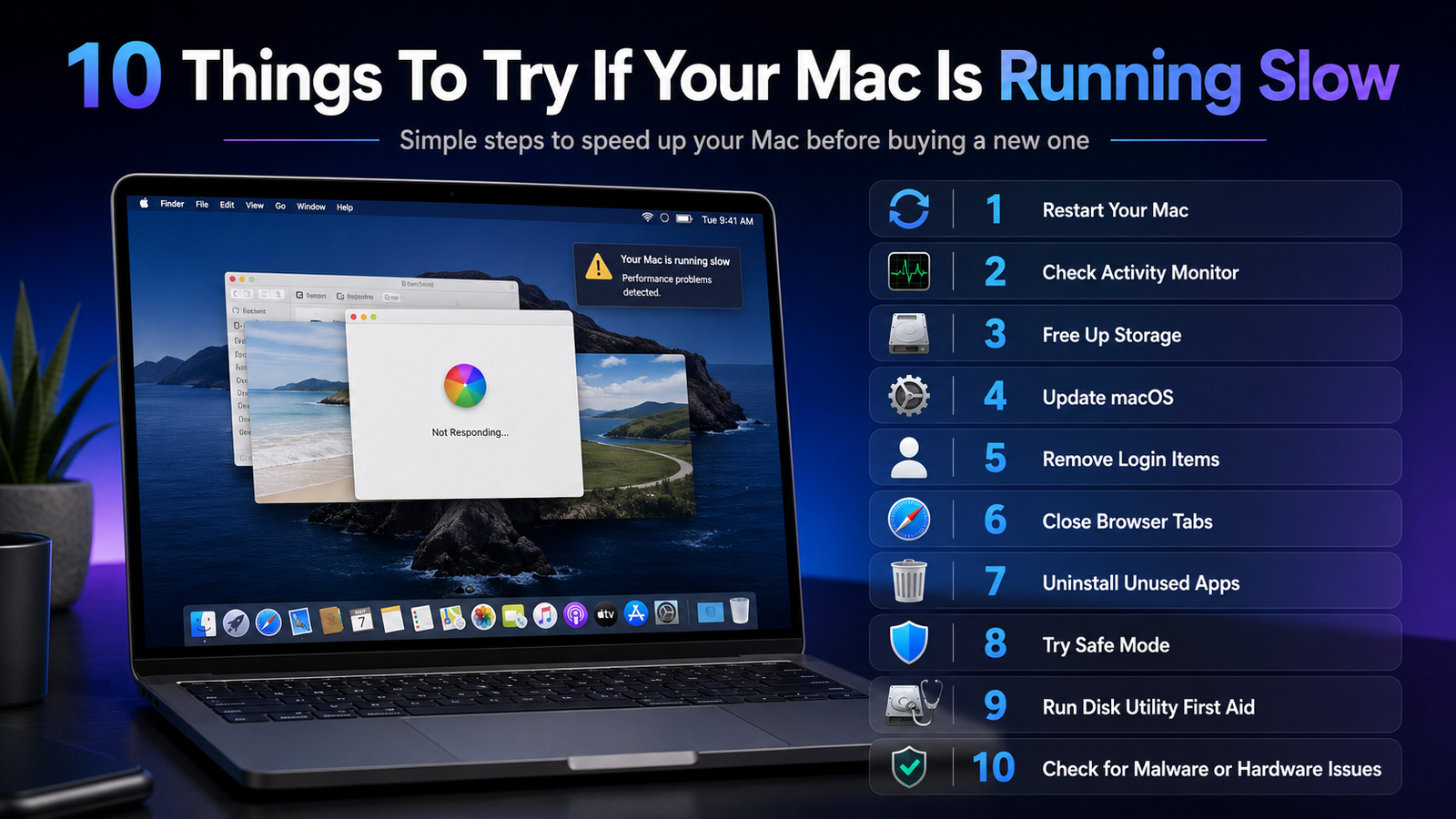
The good news is that a slow Mac does not always mean you need a new computer. In many cases, the problem is caused by low storage, too many background apps, outdated software, browser overload, a misbehaving process, or an app that is using more memory or CPU than it should. Before replacing your Mac, here are 10 things to try.
1. Restart Your Mac First
This sounds basic, but restarting your Mac is still one of the easiest and most effective first steps. Many people leave their Macs running for days or weeks at a time. That is usually fine, but over time, apps, browser tabs, background processes, memory leaks, and temporary system tasks can build up.
A restart clears active memory, closes stuck background processes, reloads macOS, and gives the system a fresh start. This is especially helpful if your Mac suddenly became slow after waking from sleep, after using a demanding app, or after connecting external devices.
To restart your Mac, click the Apple menu in the top-left corner and choose Restart. After it comes back on, wait a minute or two for startup items to finish loading, then see if the Mac feels more responsive.
If the slowdown comes back quickly after every restart, that usually means something is launching in the background, an app is misbehaving, or your Mac is low on available storage.
2. Check Activity Monitor for Apps Using Too Much CPU or Memory
Activity Monitor is one of the most useful tools built into macOS. It shows what is actually running on your Mac and how much CPU, memory, energy, disk, and network activity each process is using.
To open it, go to Applications > Utilities > Activity Monitor, or press Command + Space, type Activity Monitor, and press Return.
Start with the CPU tab. Click the % CPU column so the highest usage appears at the top. If one app is using a huge amount of CPU for a long time, it may be the reason your Mac feels slow. Video editing software, games, web browsers, cloud sync tools, backup apps, and AI tools can all use a lot of CPU, but they should not usually pin your system at high usage forever.
Next, check the Memory tab. Look at the Memory Pressure graph near the bottom. Green usually means your Mac is handling memory well. Yellow or red can mean your Mac is running low on available memory and relying more heavily on swap, which uses your storage drive as temporary memory. That can make the system feel slower, especially on older Macs or base models with limited RAM.
If an app is clearly frozen or using too many resources, select it and click the stop button at the top of Activity Monitor. Choose Quit first. If the app does not respond, choose Force Quit. Be careful not to force quit system processes unless you know what they are. Focus on normal apps you recognize.
3. Free Up Storage Space
Low storage is one of the most common reasons a Mac slows down. macOS needs free space for temporary files, app caches, downloads, virtual memory swap, software updates, Time Machine snapshots, and general system operations. If your Mac’s internal drive is almost full, performance can suffer.
A good rule of thumb is to keep at least 15% to 20% of your internal storage free when possible. On a 256GB Mac, that means trying to keep roughly 40GB to 50GB available. On a 512GB Mac, keeping 75GB or more free gives macOS more room to breathe.
To check your storage, go to System Settings > General > Storage. macOS will show categories such as Applications, Documents, Photos, Messages, Mail, and System Data. Look for large files, old downloads, unused apps, and videos you no longer need.
Good places to clean up include:
- The Downloads folder
- Large video files
- Old screen recordings
- Unused apps
- Duplicate files
- Old iPhone or iPad backups
- Large email attachments
- Trash that has not been emptied
Do not randomly delete files from system folders. Instead, use the built-in Storage section, Finder, or trusted apps to identify large personal files. Also remember to empty the Trash after deleting large files, because storage is not fully reclaimed until the Trash is emptied.
4. Update macOS and Your Apps
Keeping macOS up to date can improve performance, security, compatibility, and stability. Updates often include bug fixes for system slowdowns, app crashes, battery drain, Wi-Fi issues, and security vulnerabilities. If your Mac is running an older version of macOS, newer apps may also run less efficiently or behave unpredictably.
To update your Mac, go to System Settings > General > Software Update. If an update is available, back up your Mac first, then install the update. If your Mac is too old for the latest macOS version, install the newest version available for your model.
You should also update your apps. Open the App Store, click your account or Updates section, and install available updates. For apps downloaded outside the App Store, open the app and look for Check for Updates in the app menu, or download the latest version from the developer’s official website.
This matters even more with Apple silicon Macs. Apps designed natively for Apple silicon usually run better and more efficiently than older Intel-only versions running through translation. If you use older apps, check whether the developer offers a newer Apple silicon version.
5. Remove Unnecessary Login Items and Background Apps
Many apps add themselves to your startup or background items list. Some of these are useful, such as cloud storage, password managers, menu bar tools, or backup utilities. But over time, too many login items can slow startup, use memory, run background tasks, and make your Mac feel heavier than it should.
To check these settings, go to System Settings > General > Login Items & Extensions. Look under Open at Login and remove apps you do not need launching every time your Mac starts.
Then review background activity permissions. Some apps may continue running tasks even when they are not open. This can be useful for syncing, updates, or notifications, but it can also slow your Mac if too many apps are constantly active.
Be careful not to disable something important that you rely on, such as cloud backup, security software, device drivers, or audio tools. But if you see old apps, uninstallers, updaters, or utilities you no longer use, removing them can help.
After changing login items, restart your Mac and see if startup and general performance improve.
6. Close Browser Tabs and Remove Unneeded Extensions
For many people, the web browser is the real reason their Mac feels slow. Safari, Chrome, Edge, and Firefox can all use a lot of memory and CPU, especially if you keep dozens of tabs open. Web apps like Gmail, YouTube, Google Docs, Canva, Facebook, streaming sites, online stores, and AI chat tools can become surprisingly demanding.
Start by closing tabs you do not need. If you want to save them, bookmark them or add them to a reading list instead of keeping them open all the time.
Next, check browser extensions. Extensions can monitor pages, block ads, manage passwords, track prices, rewrite pages, or inject extra scripts into websites. Some are helpful, but too many can slow browsing or cause pages to behave strangely.
In Safari, go to Safari > Settings > Extensions and disable extensions you do not use. In Chrome or Edge, go to the extensions menu and remove anything unnecessary.
If your Mac feels slow mostly while browsing, try testing the same websites in Safari and another browser. Safari is often very efficient on Macs, especially on MacBooks where battery life matters. Chrome can be excellent, but it can also consume more memory depending on your tabs and extensions.
7. Uninstall Apps You No Longer Use
Old apps can leave behind background helpers, launch agents, menu bar tools, extensions, and update services. Even if you are not actively opening those apps, parts of them may still run in the background.
Start by reviewing your Applications folder. Delete apps you no longer use, especially old trial software, duplicate utilities, outdated VPN apps, printer software for devices you no longer own, old antivirus tools, and apps you installed once and forgot about.
For simple Mac App Store apps, you can usually delete them from Launchpad or the Applications folder. For larger apps, especially creative suites, security tools, VPNs, audio plugins, or system utilities, use the official uninstaller if the developer provides one. Dragging the app to the Trash may not remove all background components.
After uninstalling apps, restart your Mac and check Login Items & Extensions again to make sure old background items are gone.
8. Use Safe Mode To Troubleshoot
Safe Mode is a built-in troubleshooting mode that starts your Mac with only essential software. It can help determine whether your slowdown is being caused by login items, extensions, fonts, caches, or third-party software.
The steps are different depending on whether you have an Apple silicon Mac or an Intel Mac.
On an Apple silicon Mac, shut down the Mac. Press and hold the power button until startup options appear. Select your startup disk, then press and hold the Shift key and choose Continue in Safe Mode.
On an Intel Mac, restart the Mac and immediately hold the Shift key until you see the login window. You may need to log in more than once, and you should see Safe Boot in the menu bar.
Once in Safe Mode, use your Mac for a few minutes. It may look or behave slightly different because some features are limited, but that is normal. If your Mac feels much better in Safe Mode, the slowdown may be caused by a login item, extension, driver, or third-party app. Restart normally, then remove or update recently installed apps and background items.
Safe Mode is not meant to be used permanently. It is a diagnostic step to help narrow down the cause.
9. Run Disk Utility First Aid
If your Mac is slow, freezing, showing errors, crashing, or behaving strangely, it is worth checking the internal storage using Disk Utility First Aid. Disk Utility can find and repair certain formatting and directory structure problems on your Mac’s storage device.
Open Disk Utility from Applications > Utilities. In Disk Utility, choose View > Show All Devices if available. Select your internal volumes and run First Aid. In some cases, you may need to run First Aid on the volumes, then the container, then the physical disk.
If Disk Utility reports errors it cannot repair, back up your Mac immediately. Storage problems can get worse over time. On newer Macs, internal SSD failures are less common than on older hard-drive-based Macs, but storage errors can still happen.
Running First Aid will not magically make every slow Mac fast, but it is a useful step when the slowdown feels abnormal or is paired with crashes, file errors, or startup problems.
10. Check for Malware, Bad Extensions, or Hardware Problems
Macs have strong built-in protections, including Gatekeeper, notarization, and XProtect, but no computer is immune from bad software, scams, malicious browser extensions, fake apps, or aggressive adware. If your Mac suddenly became slow after installing an unknown app, browser extension, “cleaner,” fake update, or free download, that is a red flag.
Start by removing suspicious apps and extensions. Be especially careful with fake Flash updates, unknown antivirus pop-ups, browser search hijackers, sketchy coupon extensions, and apps that promise to magically clean or speed up your Mac. Many “Mac cleaner” apps are unnecessary and can make things worse.
Also check your browser homepage and search engine settings. If they changed without your permission, remove the related extension or app.
If the Mac is still slow and you suspect a deeper issue, run Apple Diagnostics. This built-in tool can check your Mac for hardware problems such as logic board, memory, or wireless component issues. On Apple silicon Macs, shut down the Mac, press and hold the power button until startup options appear, then press Command-D. On Intel Macs, restart and hold the D key.
If Apple Diagnostics reports an error code, write it down and contact Apple Support or an authorized service provider. A slow Mac can sometimes be caused by failing hardware, overheating, a battery issue, or another internal problem.
Bonus Tip: Be Realistic About the Mac You Own
Sometimes a Mac is slow because something is wrong. Other times, it is slow because the hardware is being pushed beyond what it was designed to do.
A base Mac with 8GB of memory and 256GB of storage can still be great for web browsing, email, writing, office work, video calls, and light photo editing. But if you are editing large video projects, running virtual machines, working with huge photo libraries, using local AI models, or keeping dozens of browser tabs open, you may simply need more memory, more storage, or a newer Mac.
Older Intel Macs can also feel slower today because modern apps, websites, and macOS features are more demanding than they were years ago. Apple silicon Macs are generally much faster and more efficient, but even they can slow down if storage is full, memory pressure is high, or too many background apps are running.
Final Thoughts
If your Mac is running slow, start with the easy fixes first: restart, check Activity Monitor, free up storage, update macOS, and remove unnecessary login items. Those five steps solve many common Mac performance problems.
If the issue continues, move on to browser cleanup, uninstalling unused apps, Safe Mode, Disk Utility First Aid, and Apple Diagnostics. By working through the problem step by step, you can usually figure out whether your Mac just needs cleanup, whether a specific app is causing the issue, or whether it may be time to consider a hardware repair or upgrade.
A slow Mac does not always mean the computer is done. In many cases, a little maintenance can make it feel much faster again.